
Using the Connect Dashboard
The Connect Dashboard is a quick and convenient method for navigating to various parts of VinSolutions.
Our primary use of this view is to look at the entire dealership’s daily activities. It’s a

To use this function, click anywhere in the Connect Dashboard. This will open up the full dashboard.
It will look like this on your screen:
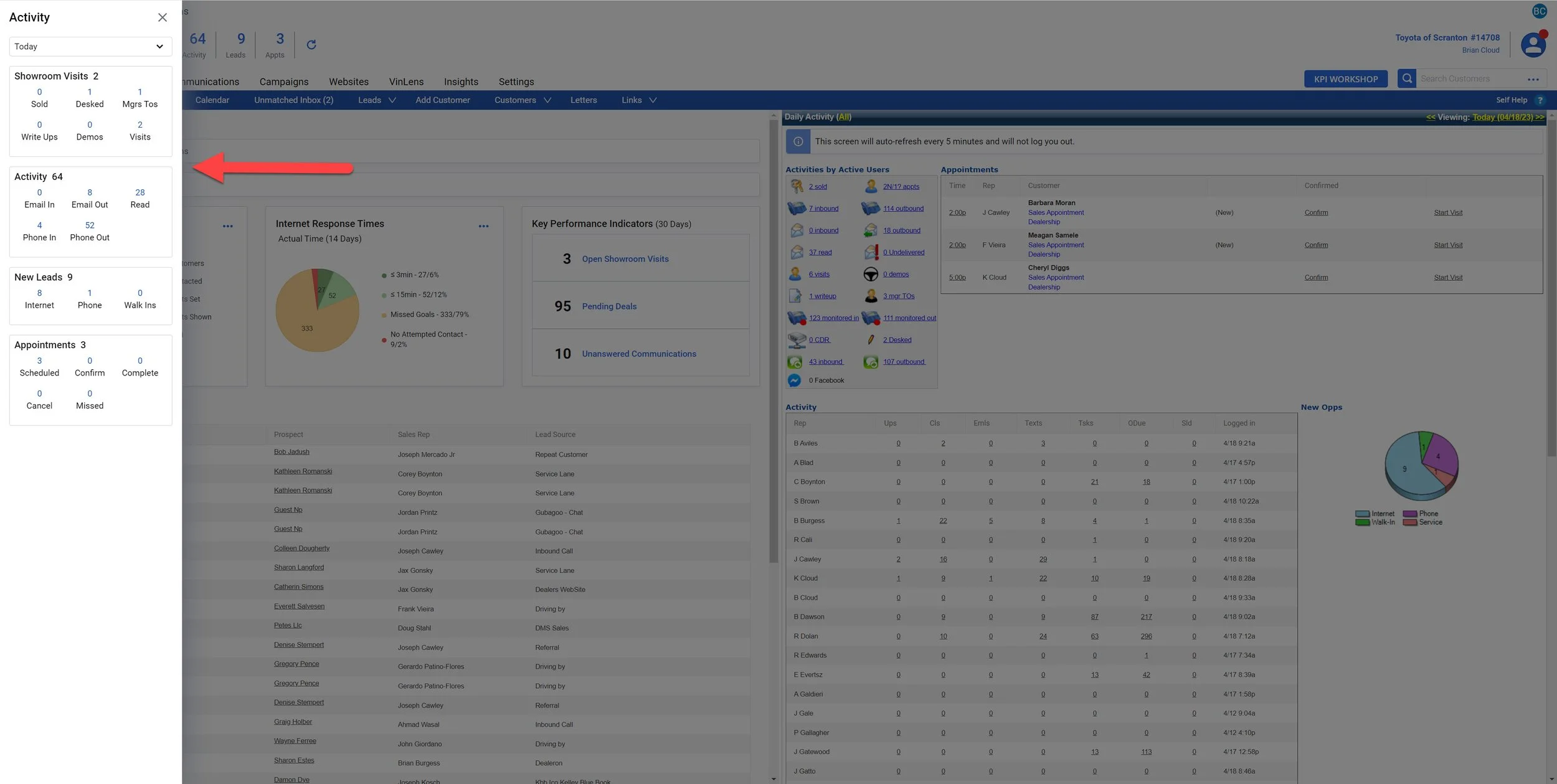
Taking a closer look at just the dashboard:
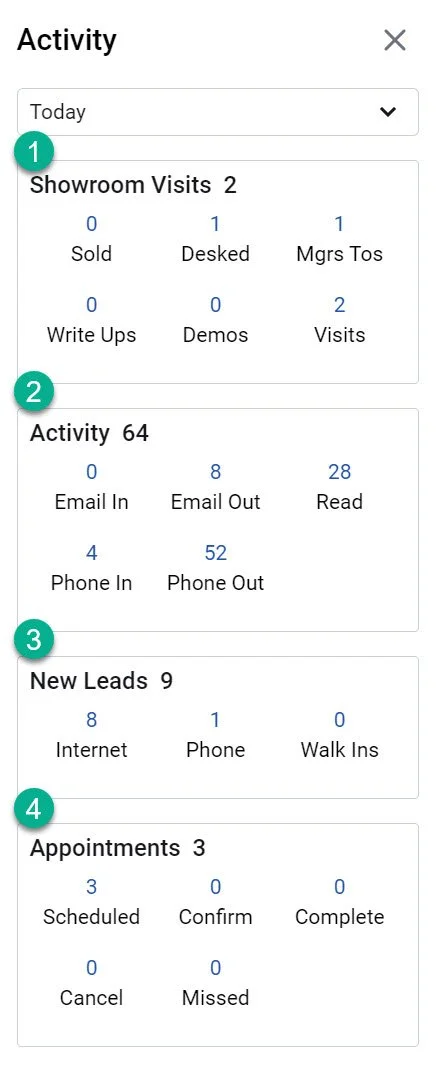
1- Showroom Visits:
By clicking any of the blue hyperlinked numbers you will automatically navigate to the available customers logs listed.
Sold- This will take you to all of the pending and delivered deals for the dealership
Desked- This will take you to the desk log but it will automatically sort to the event type "Desking". This means that the manager associated with the visit has checked the box indicating that the customer has been provided a pencil.
Mgrs Tos- This will take you to the desk log but it will automatically sort to the event type "Manager Turnover". This means that the manager associated with the visit has checked the box indicating that they have spoken to the customer regarding the deal they penciled.
Write Ups- This will take you to the desk log but it will automatically sort to the event type "Writeups". This means that the manager associated with the visit has checked the box indicating that they have provided the pencil to the sales person to present to the customer.
Demos- This will take you to the desk log but it will automatically sort to the event type "Demo". This means that the manager associated with the visit has checked the box indicating that the sales person has demonstrated the vehicle to the customer.
Visits- This will take you to the desk log and show you the entire situation of the showroom. This is the best way to look at the desk log in terms of visits. It will show you all pending deals, unsold visits, and the part of the process the customer is currently in.
2- Activity:
By clicking any of the activity types you can view any of the activity types throughout the dealership. This shows the entire dealerships inbound and outbound communications by type with an available link for the customer record.
3- New Leads:
By clicking any of the blue hyperlinked numbers you will automatically navigate to the available customers logs for the types of new leads listed.
4- Appointments:
By clicking any of the blue hyperlinked numbers you will automatically navigate to the Appointment Report based on the disposition you have selected.