
Dealership Activity Widget
This widget is a quick way to view and navigate to all of the various types activity throughout the dealership.
Many of the activities are self explanatory, but there are a few important things to note while reviewing this information:
This is for the entire dealership, which includes service communications.
For the most part, this will show everyone at the same time and can not be drilled down into individuals with the exceptions of some of the specific logs which will be notes below.
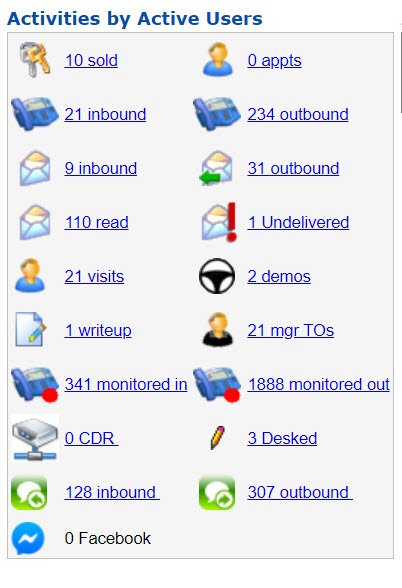
All of the numbers next to the type of activity show the activity count. Below is an explanation of the activity and what opens when you click the hyperlinks.
Sold- Clicking on this will open the Sold Log for the day, you can edit per user on this log.
Appts- Clicking on this will open the Appointment Log for the day, you can edit per user on this log.
Inbound (Phone Icon)- Clicking on this will pull all of the inbound calls manually logged by the entire dealership. Our current system automatically logs inbound calls, using the monitored in section will give you a better idea of the inbound activity. This log is not sortable by user.
Outbound (Phone Icon)- Clicking on this will pull all of the outbound calls manually logged by the entire dealership. Our current system automatically logs inbound calls, using the monitored in section will give you a better idea of the outbound activity. This log is not sortable by user.
Inbound (Mail Icon)- Clicking on this will open a log of all the inbound emails sent to the dealership throughout the entire dealership. This log is not sortable by user.
Outbound (Mail Icon)- Clicking on this will open a log of all the outbound emails sent to the dealership throughout the entire dealership. This log is not sortable by user.
Read (Mail Icon)- Clicking on this will open a log of all of the emails sent by the dealership that were read by customers. This log is not sortable by user.
Undelivered (Angry Mail Icon)- Clicking on this will open a log of all the emails that bounce from the email provided in the system. (You should probably check the email address and delete if necessary)
Visits- Clicking on this will open the showroom log. This log will let you sort by user.
Demos- Clicking on this will open the showroom log sorted by customers that have been marked through the demo process in their showroom visit. This log will let you sort by user.
Writeup- Clicking on this will open the showroom log sorted by customers that have been marked through the writeup process in their showroom visit. This log will let you sort by user.
Mgr TOs- Clicking on this will open the showroom log sorted by customers that have been marked through the manager turnover process in their showroom visit. This log will let you sort by user.
Monitored In- This will open the monitored inbound phone call log. This log will allow you sort by user. It contains the information from our digital phone system and will allow you to match phone calls to records if they haven’t already been found by the system.
Monitored Out- This will open the monitored outbound phone call log. This log will allow you sort by user. It contains the information from our digital phone system and will allow you to match phone calls to records if they haven’t already been found by the system.
CDR- Just don’t touch this ever. It’s old, it doesn’t effect our set up. I don’t think I’ve ever seen this used by a dealership in 10 years working with VinSolutions.
Desked- Clicking on this will open the showroom log sorted by customers that have been marked through the desked process in their showroom visit. This log will let you sort by user.
Inbound (Green Bubble)- Clicking on this will open inbound text message log. This a sortable version of all the inbound text communications throughout the dealership.
Outbound (Green Bubble)- Clicking on this will open outbound text message log. This a sortable version of all the outbound text communications throughout the dealership.
Facebook- if the dealership is connected and communicating through social media with customer, this would open the messaging log and show the messages here. This is not currently hooked up at our dealership and I personally find this a little weird.
1- In this section of the report you can make adjustments to the results below. You can make adjustments by user groups, users, timeframe, sold status , type of user, type of inventory, and the make of the vehicle. You must click “refresh” for any adjustments in this section to appear on the report below.
2- In this column, you can find the representative that sold the vehicle, the status of the deal, and the deal number associated with the write up.
3- This column shows the customer’s name and the type of vehicle they have committed to.
A stock number should be filled out for each vehicle if it is available. The only exceptions would be new vehicles that do not have a stock number assigned yet.
4- This column shows the lead source assigned to the deal
5- In this column is the date of sale as well as the “modify” button.
The modify button allows you to make adjustments to the deal.
6- These are the exit notes associated with the purchase.