
Finding and Checking for New Leads
Converting internet leads largely depends on how quickly you reach out to customers.
Speed is as crucial as a quality response when contacting a customer for the first time. Prompt outreach increases the likelihood of making initial contact, while a high-quality response boosts the chances of converting that contact into an appointment.
With the dealership dashboard open and constantly refreshing, keeping an eye on the "Internet Response" widget is an effective way to monitor new leads throughout the day.
Remember, if a lead has gone past 10 minutes under the actionable section, you may respond to a lead that is not assigned to you.
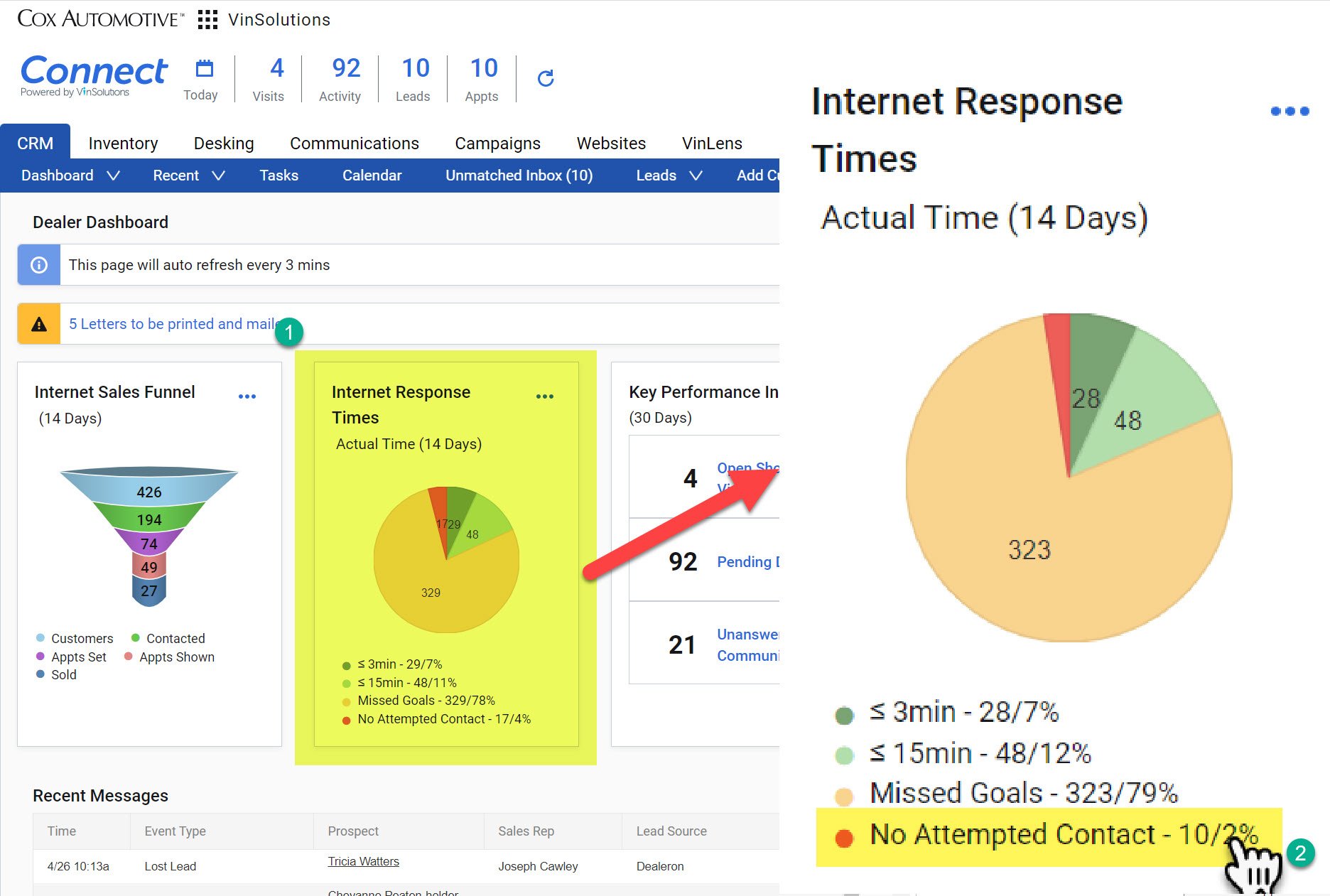
The red section of the pie chart should always say “0”
1- Locate the Internet Response Times widget on the Dashboard.
2- Click on either the red section of the pie chart or the “No Attempted Contact” to open the response time log.
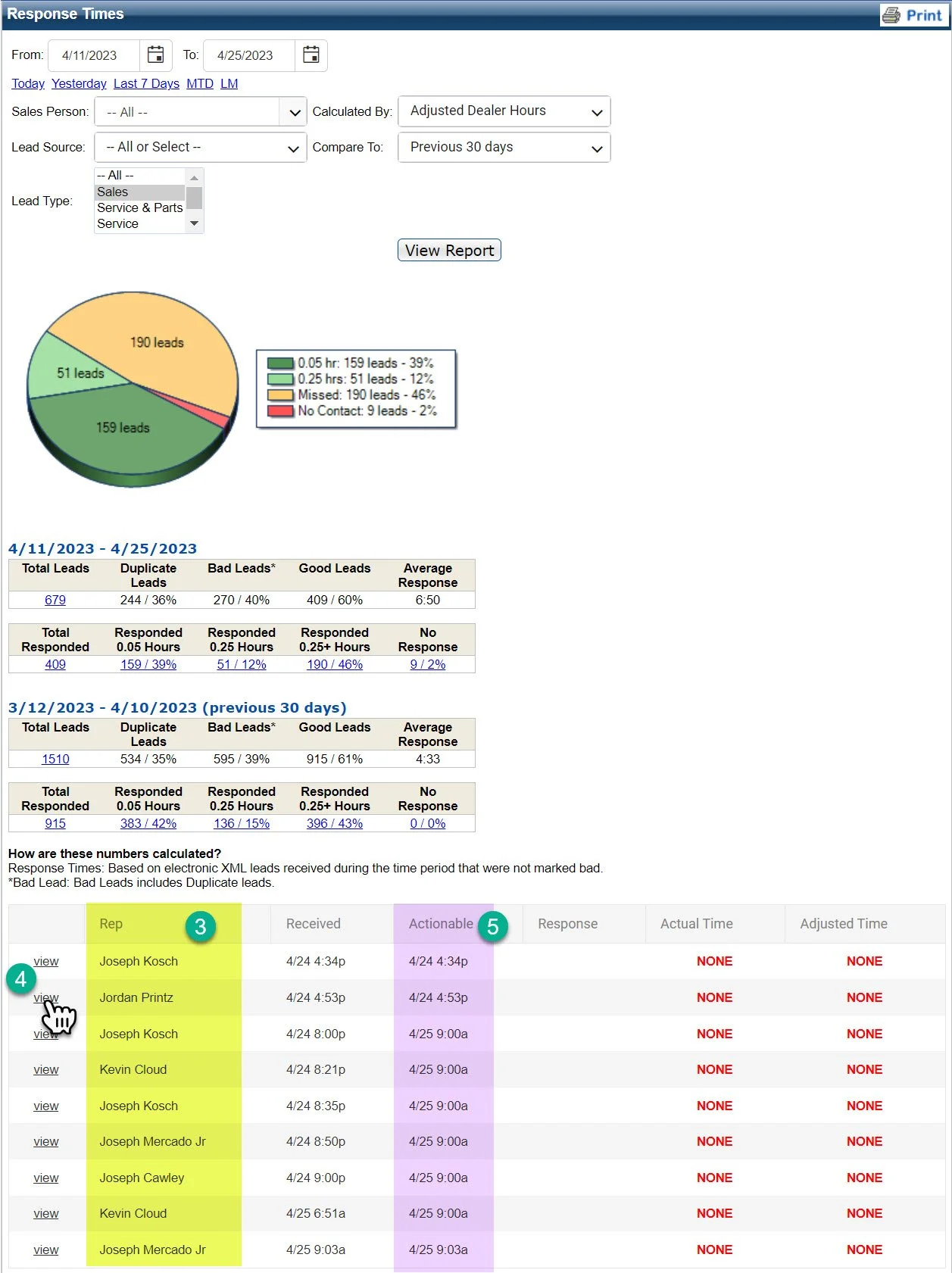
3- Find your name on the list under the “Rep” section.
You want to make sure your name is never on this list. Once you have placed a phone call note on the lead, it will automatically be removed.
4- Click the “view” link next to your name to navigate to the customer profile so you can begin working the lead.
5- If a lead has gone past 10 minutes under the actionable section. You may respond to a lead that is not assigned to you.
Alternate Options
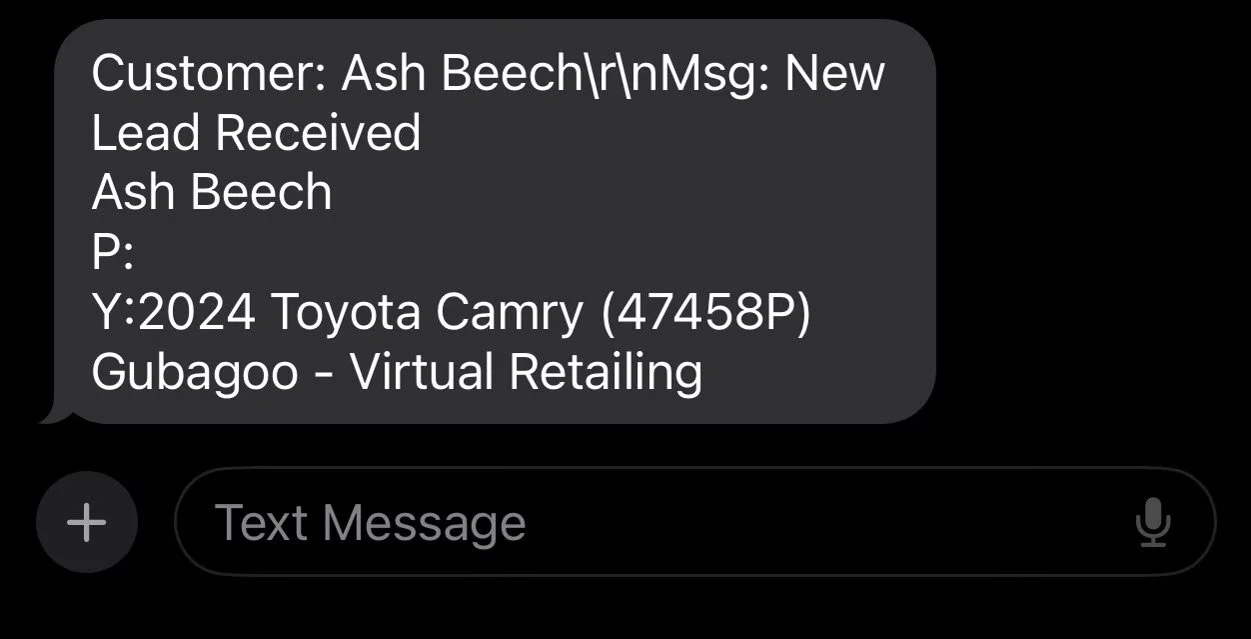
During the setup of your VinSolutions profile, you were likely enrolled in VinSolutions Alerts. This feature sends a text to your personal cell when a lead or a text message response comes in. Please be vigilant to help reduce your lead response time. You won't be able to access the profile directly from the text message, but you can respond via the application or your desktop. If you aren't set up with text alerts, please see your internet manager.
Additionally, if you are doing your follow-up from your desk log and regularly refreshing it, new leads will appear with a notification on your log.
Text Alert
Desk Log Alert
