
Internet Response Times
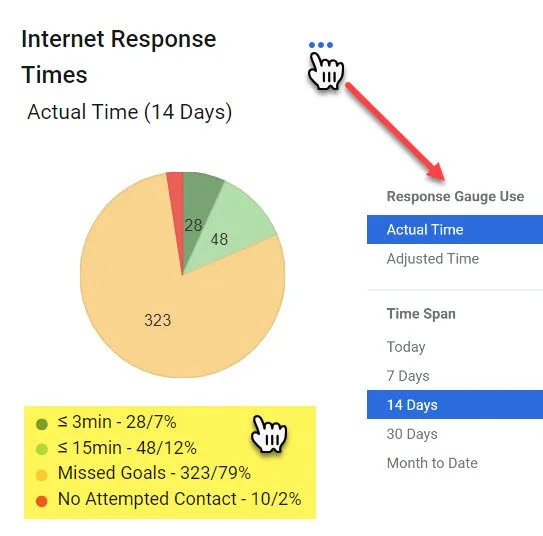
Internet response times are a strong indicator of how well leads will be converted.
This widget is vital to viewing our internet response time and quickly viewing leads that have not received a response.
*Clicking the ellipses in the top corner will give you the ability to adjust the time frame for the widget.*
Actual Time is the minute for minute response time since the lead was received in the system to when a phone call note was placed on the lead.
Adjusted Time is the minute for minute response time since the lead was received in the system to when a phone call note was placed on the lead, however it accounts for the dealership’s hours.
For instance, if we receive the lead at 1:00 am, but open at 9:00 am and the response was completed at 9:05. Actual Time will show a response time of 8 hours and 5 minutes, Adjusted Time will show a 5 minute response time.
*Clicking on the colors of the pie chart (that correspond with the response times below), or the response time goals will open the Response Time Log.*
IT IS EXTREMELY IMPORTANT TO CONSISTENLY MONITOR THE “NO ATTEMPTED CONTACT” SECTION.
These are the new leads that have not been addressed yet. This widget along with the entire dashboard will refresh throughout the day. Think of this as “red means fire” and have the same urgency to address a lead as you would to put out a fire.
Response Time Log
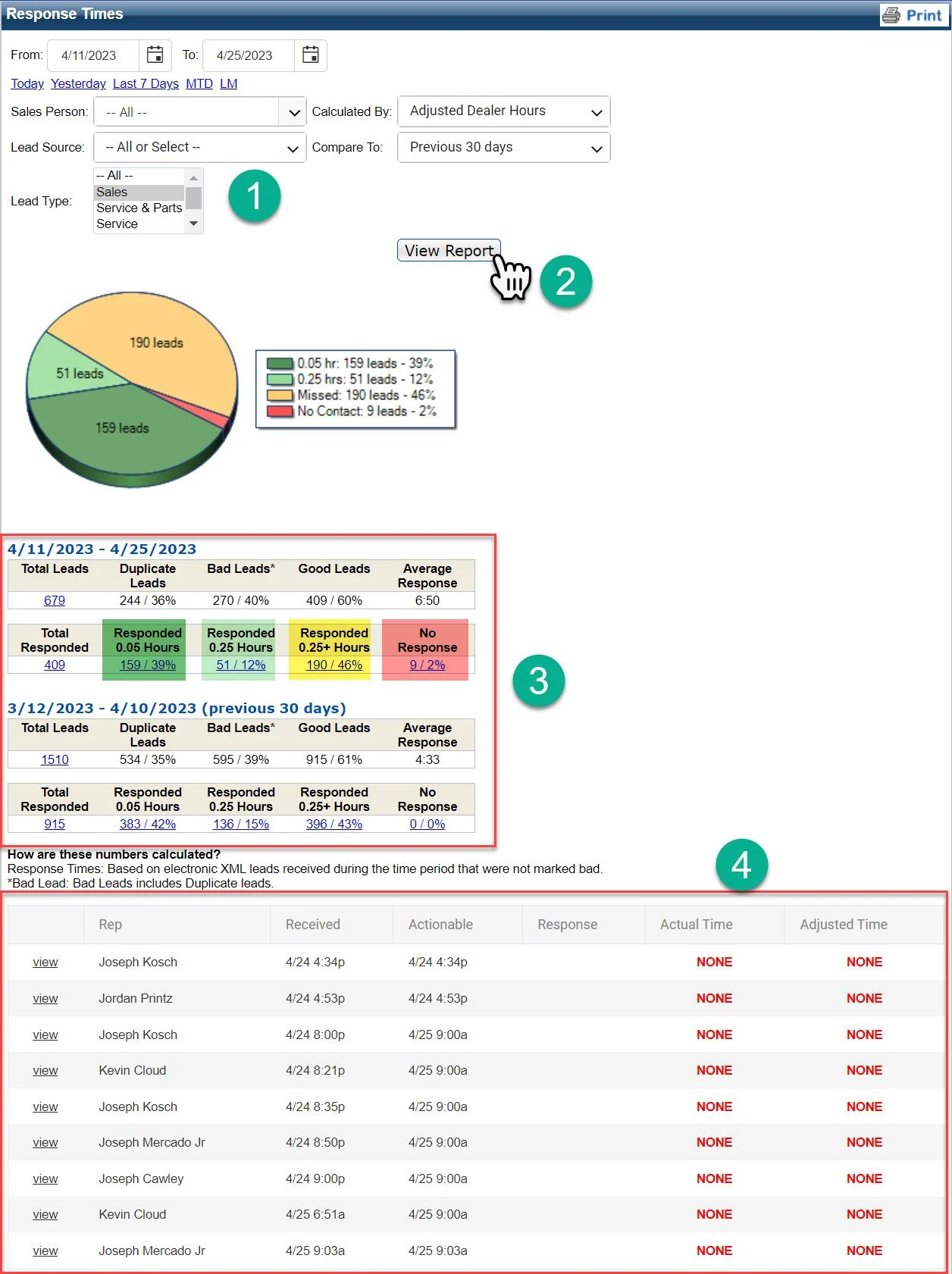
1- This section will allow you to filter customer filter the report.
2- After you have made custom adjustments to the report, you must click view report to review your selections.
3- All of the blue hyperlink figures will automatically provide the corresponding report below if you click on them. It is set to default to the original pie chart with a comparison of a previous time period. The highlighted sections correspond to the pie char above.
4- This is the information provided in the report based on your selections.
Understanding the Response Time Log
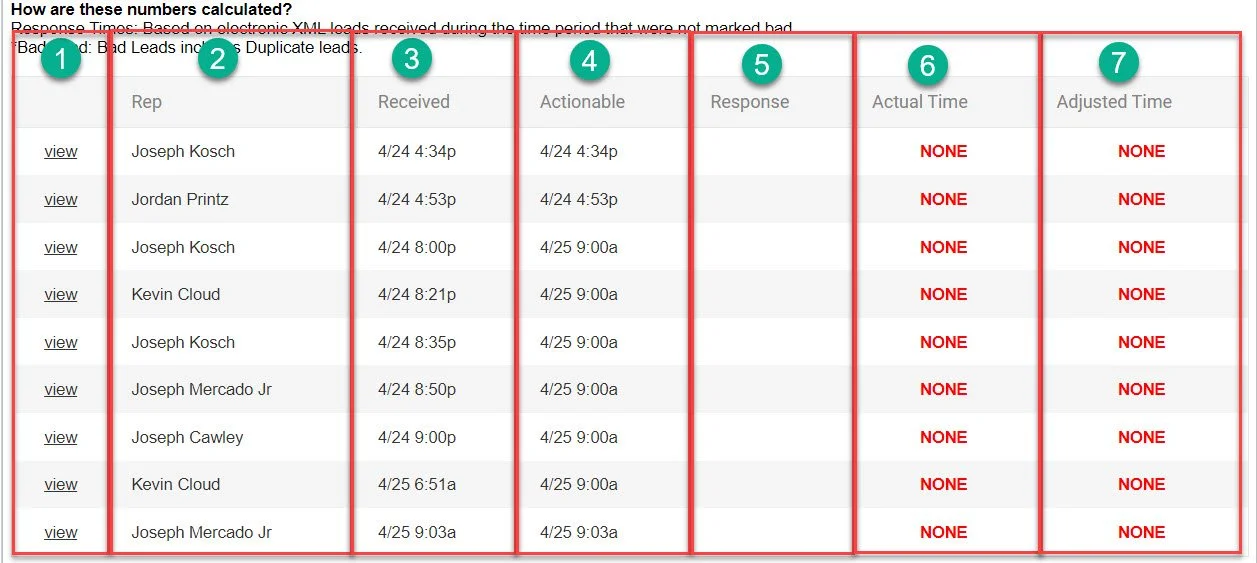
1- Clicking the “view” button will bring you direct to the corresponding customer profile
2- Name of the Sales Representative responsible for the lead.
3- The timestamp when the lead was received.
4- The expected time of action base on store hours.
5- The timestamp of when an action occurred would take place in the section, the report above is filtered to “No Contact”, so no timestamps will appear.
6- This will show the actual response time.
7- This will show the adjusted response time.