
How to Mark A lead “Lost”- Manager
The salesperson recently determined that a customer should be designated as “lost”. assigned to the customer does not have the ability to actually mark a lead lost. This can only be performed by a manager.
The request will appear in the form of a task. The task will be assigned to the manager associated with the record. The task will appear like this:
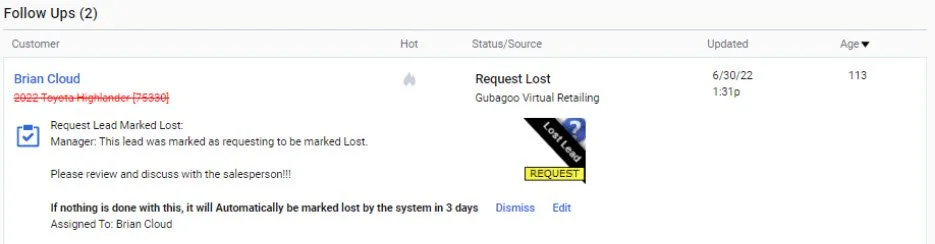
At this point our next step will be to open the customer profile and review the notes to see why the salesperson is requesting this action.
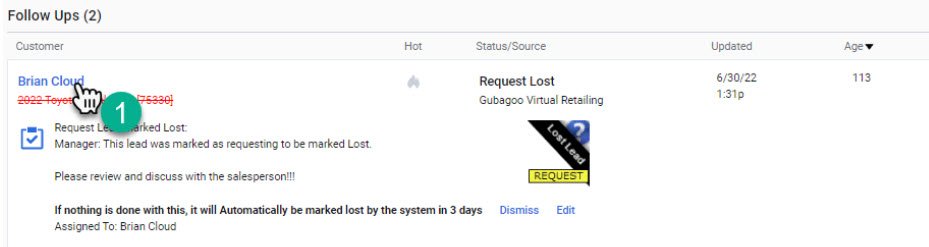
1- Open the customer profile by clicking on the customer name.
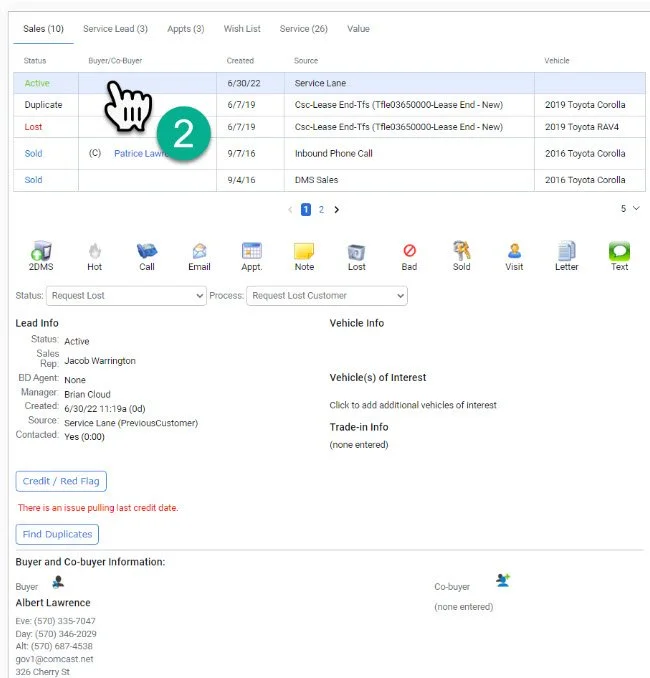
2- Make sure you select the active profile.
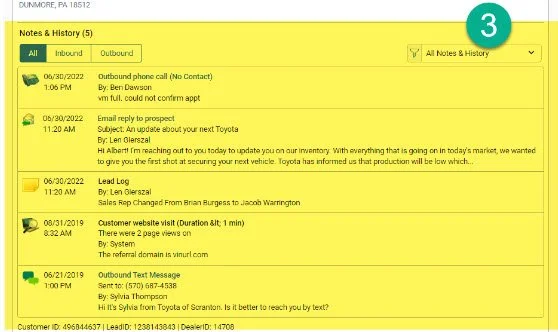
3- Review the customer notes to determine whether or not this customer should be marked lost.
-IF THE CUSTOMER SHOULD BE MARKED LOST-

4- Click the “Lost” button on the customer action dashboard.
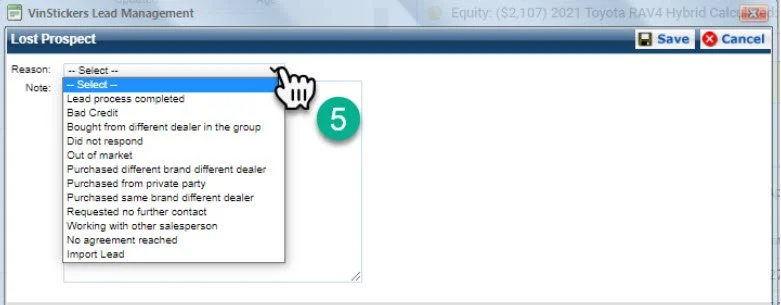
5- Choose the correct disposition of the customer. For help determining, which disposition to use. Please refer back to the lead status guide under the lost lead section.
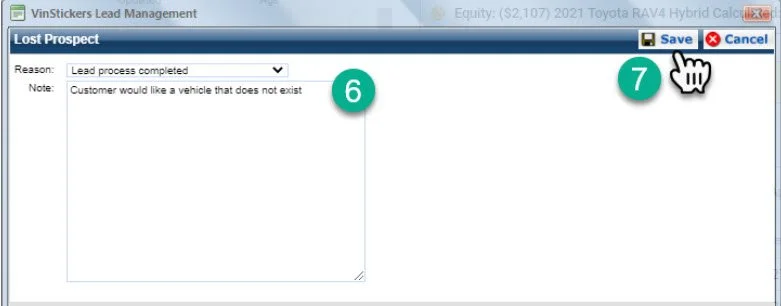
6- Fill out appropriate notes in the text box.
7- Click “Save”

8- Complete the task by clicking on the blue clipboard at the top of the profile.
-IF THE CUSTOMER SHOULD NOT BE MARKED LOST-

4- Click on the “Note” button
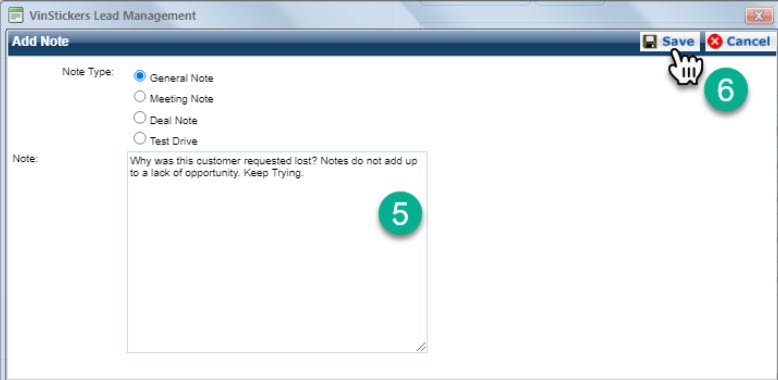
5- Leave a message, of where to go with the customer or the reason why the salesperson should continue to try and work the lead.
6- Click “Save”
** Note: At this point you may want to reassign the customer to another salesperson to try to reinvigorate the lead **
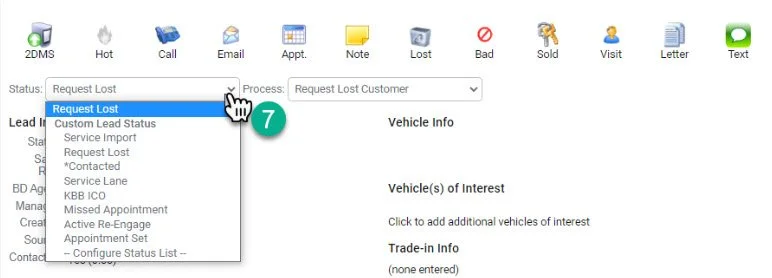
7- Click on the custom status and adjust it. THIS IS EXTREMELY IMPORTANT. The lead will automatically mark itself as lost after 5 days if you do not adjust it. Choosing the new status will continue the customer’s automatic processes.
For Internet Leads: Choose *Contacted
For Service Lane Leads: Choose Service Lane
For KBB leads: Choose KBB ICO