
Pending Deals
This section is primarily for management oversite.
This report will show customers that have been marked sold, but do not have a finalized deal linked from the DMS.
Deals are downloaded nightly from CDK (Our current DMS) once they have been finalized in accounting. However, the information from VinSolutions and CDK must match for the automatic download to occur. Daily, we should review and match the finalized deals that have not automatically matched to their correct VinSolutions record. Prior to reviewing the current pending deals, we should make sure there are no unmatched deals in the system.
Click here for the tutorial on matching DMS deals to the VinSolutions record.
As a sales person, checking on your pending deals each day should be one of your top priorities. Customers that have committed to purchasing a vehicle, but have a final obstacle should be brought to a manager to review on a daily basis until we can reach a final decision.
As a manager, reviewing pending deals for information and communication from the sales person on a daily basis will help us keep track of all of the commitments we gain from customers. In this report, you will also find deals that are on order as well as “get-me-dones” working their way through finance. Its up to you to continue to push these deals forward and confirm that your sales people are following through with our customers.
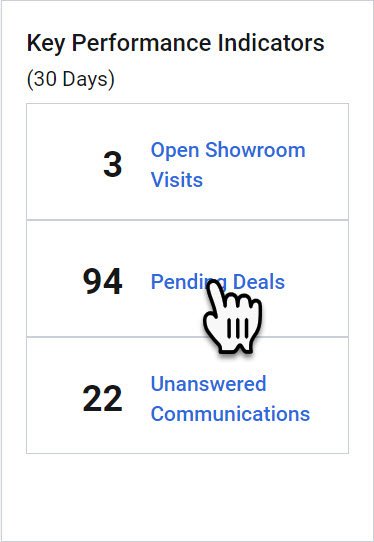
Begin by clicking on the “Pending Deals” hyperlink in the Key Performance Indicator widget on the Dashboard.
This will open the “Pending Deals Dashboard”
Pending Deals Visits Dashboard Explained
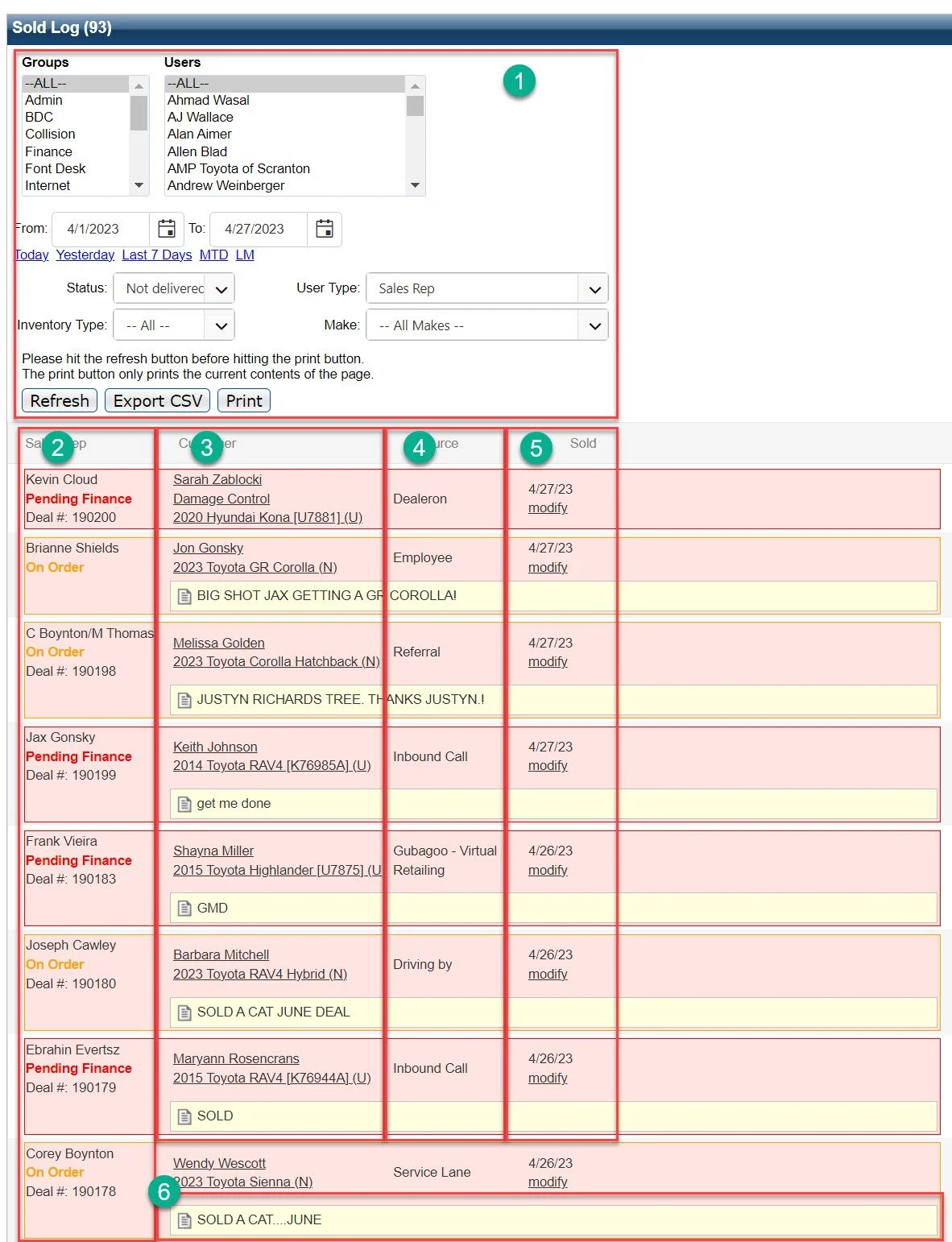
1- In this section of the report you can make adjustments to the results below. You can make adjustments by user groups, users, timeframe, sold status , type of user, type of inventory, and the make of the vehicle. You must click “refresh” for any adjustments in this section to appear on the report below.
2- In this column, you can find the representative that sold the vehicle, the status of the deal, and the deal number associated with the write up.
3- This column shows the customer’s name and the type of vehicle they have committed to.
A stock number should be filled out for each vehicle if it is available. The only exceptions would be new vehicles that do not have a stock number assigned yet.
4- This column shows the lead source assigned to the deal
5- In this column is the date of sale as well as the “modify” button.
The modify button allows you to make adjustments to the deal.
6- These are the exit notes associated with the purchase.