
Print Forms Packet
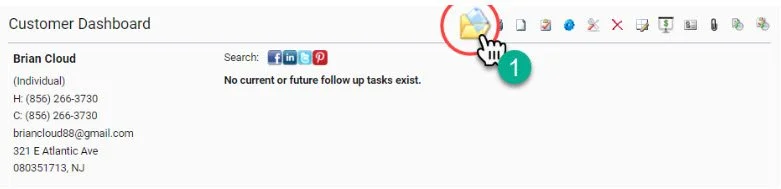
Printing forms for various reasons in an important part of the sales process. From this dashboard you can print the Salesperson Checklist or the Client Assessment Review (C2) which are both requirements of the showroom experience.
1- Select the Print forms Packet Icon from the Quick Action Profile Management
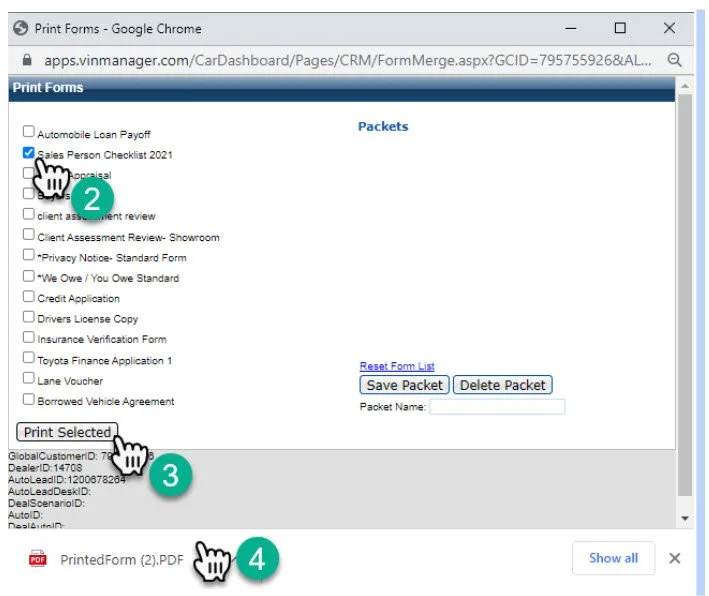
2- Select the form you want to print by clicking the checkbox
3- Click “Print Selected”
4- A download will appear automatically at the bottom of the window once you click “Print Selected”. Click on the file that appears to open it.
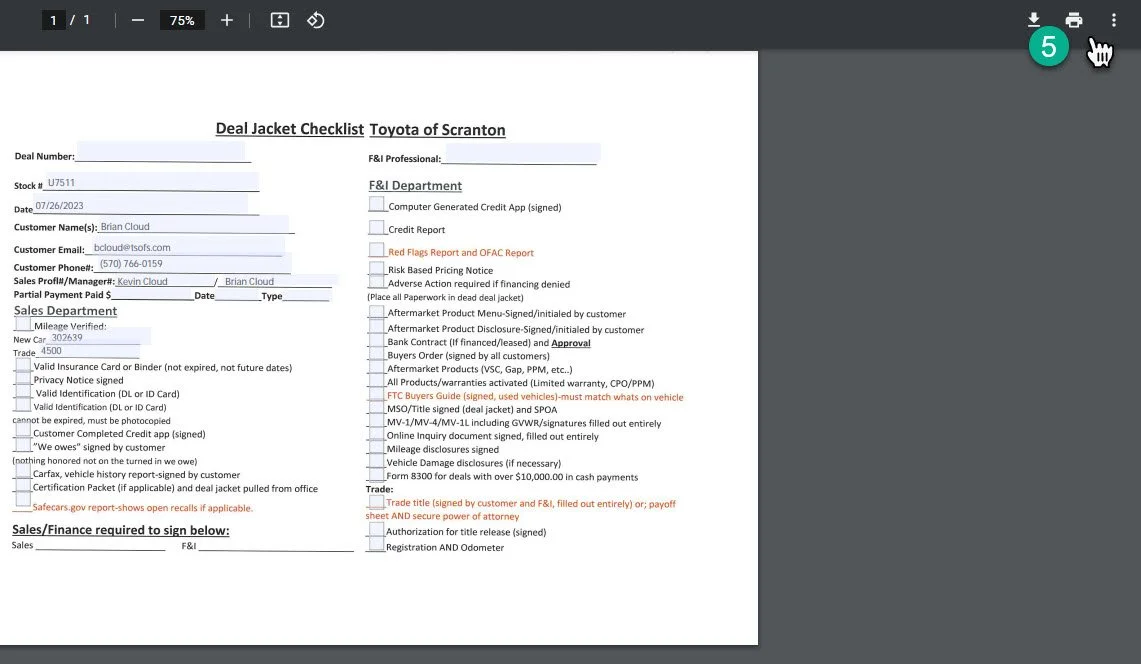
5- The new file will open in a new window on your browser, from here you can choose to print the form and fill it out by hand, or enter the information in by filling out the gray boxes prior to printing. Click the little printer icon in the upper right corner when you are ready to print.
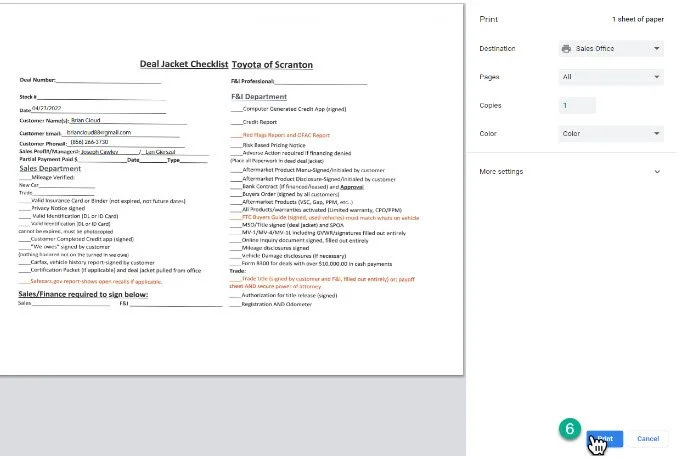
6- A print preview screen will appear, select print in the bottom right hand corner. Take a moment to make note of which printer you are sending the file to in the destination section prior to printing and make your way to that printer.