
Sending and Opt-In Text
When responding to fresh internet lead you’ll most likely have to opt-in the customer to text messages. For this, we first need to enable texting on the customer profile by opting in the customer manually. Then we need to send the opt-in template.
Enabling Texting in the Customer Profile
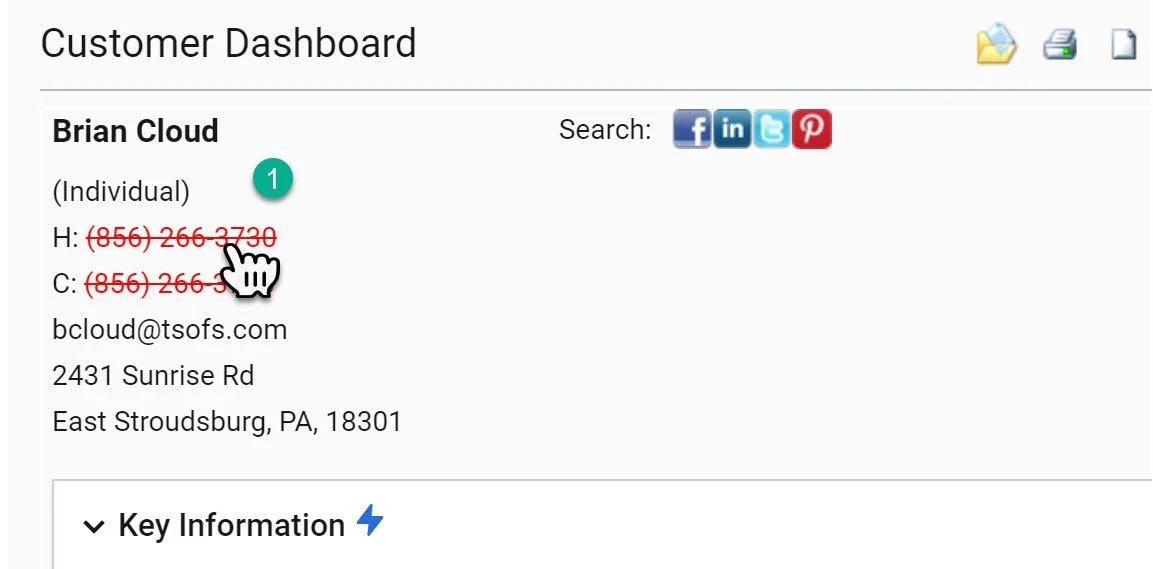
1- Click the customer’s name in the top left corner of the customer profile.
This will cause the customer information screen to pop-up.
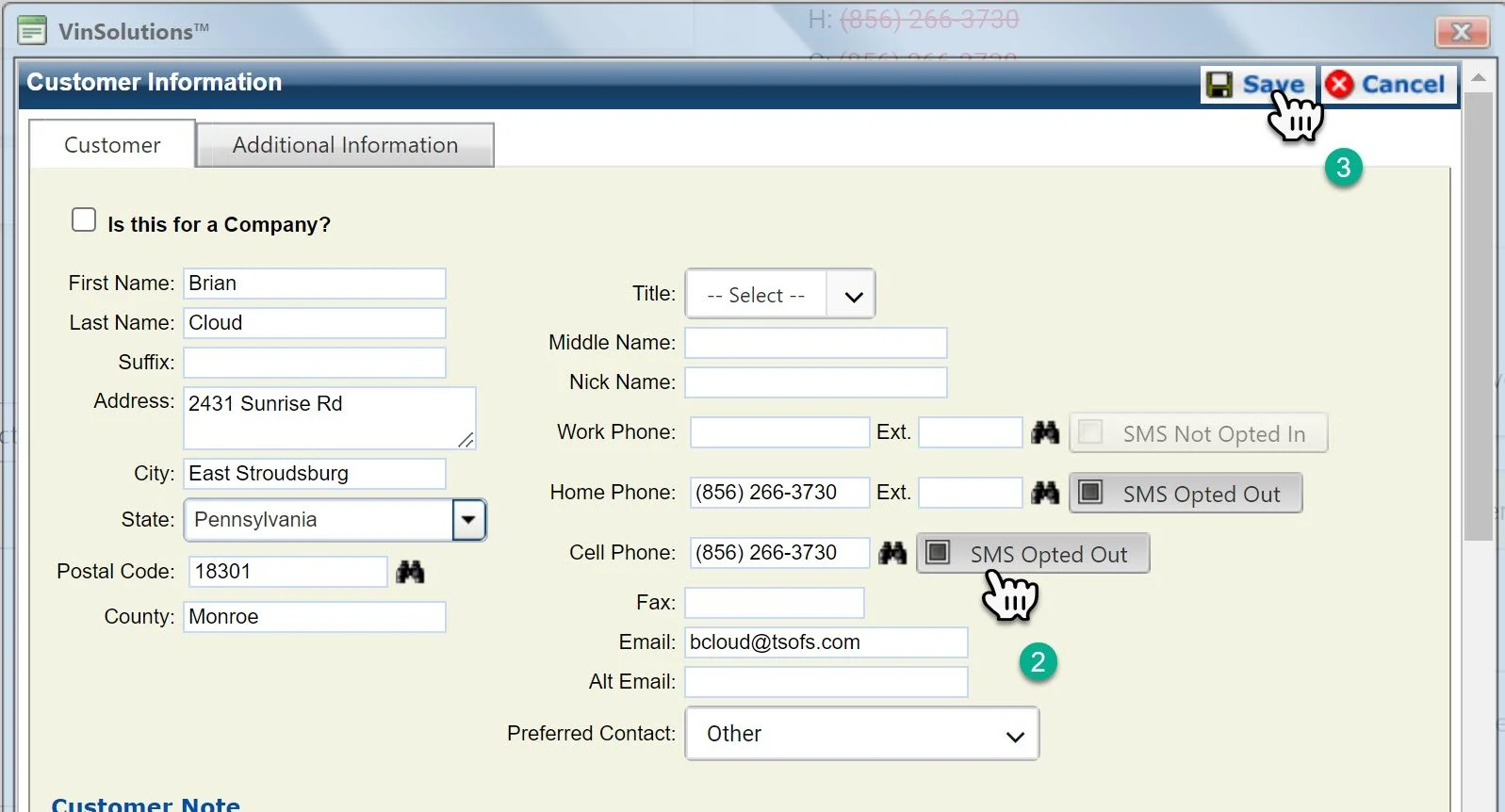
2- Click the “SMS Opted button” click the button until the SMS says Opted In
3- Click the Save button
Sending the Opt-In Text

1- Click on the text icon
Note: If your text icon is grey. You will need to opt-in the customers phone number.
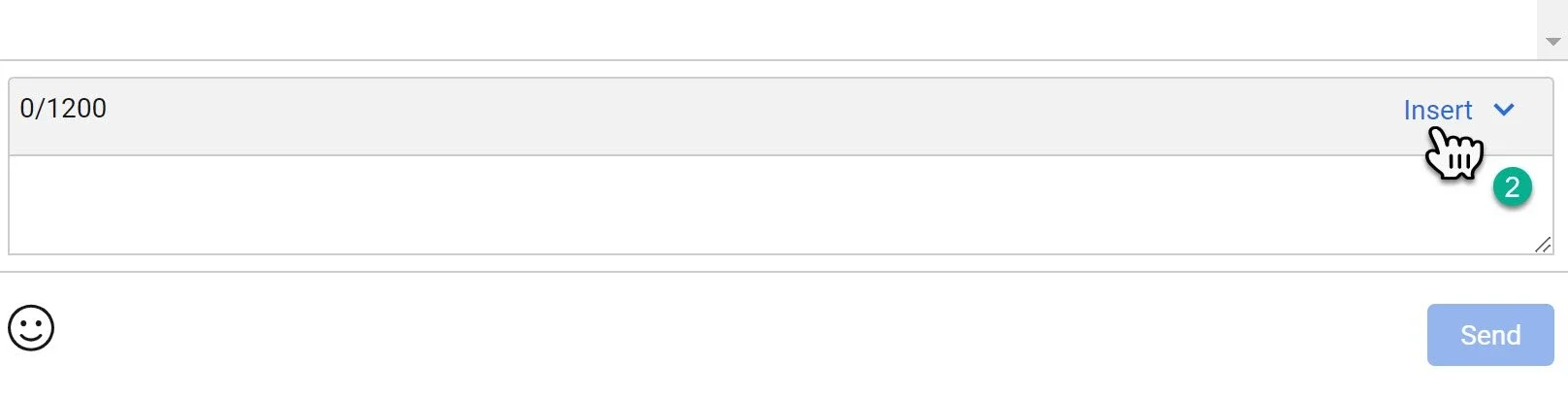
2- Click the insert section of the text box that appears.
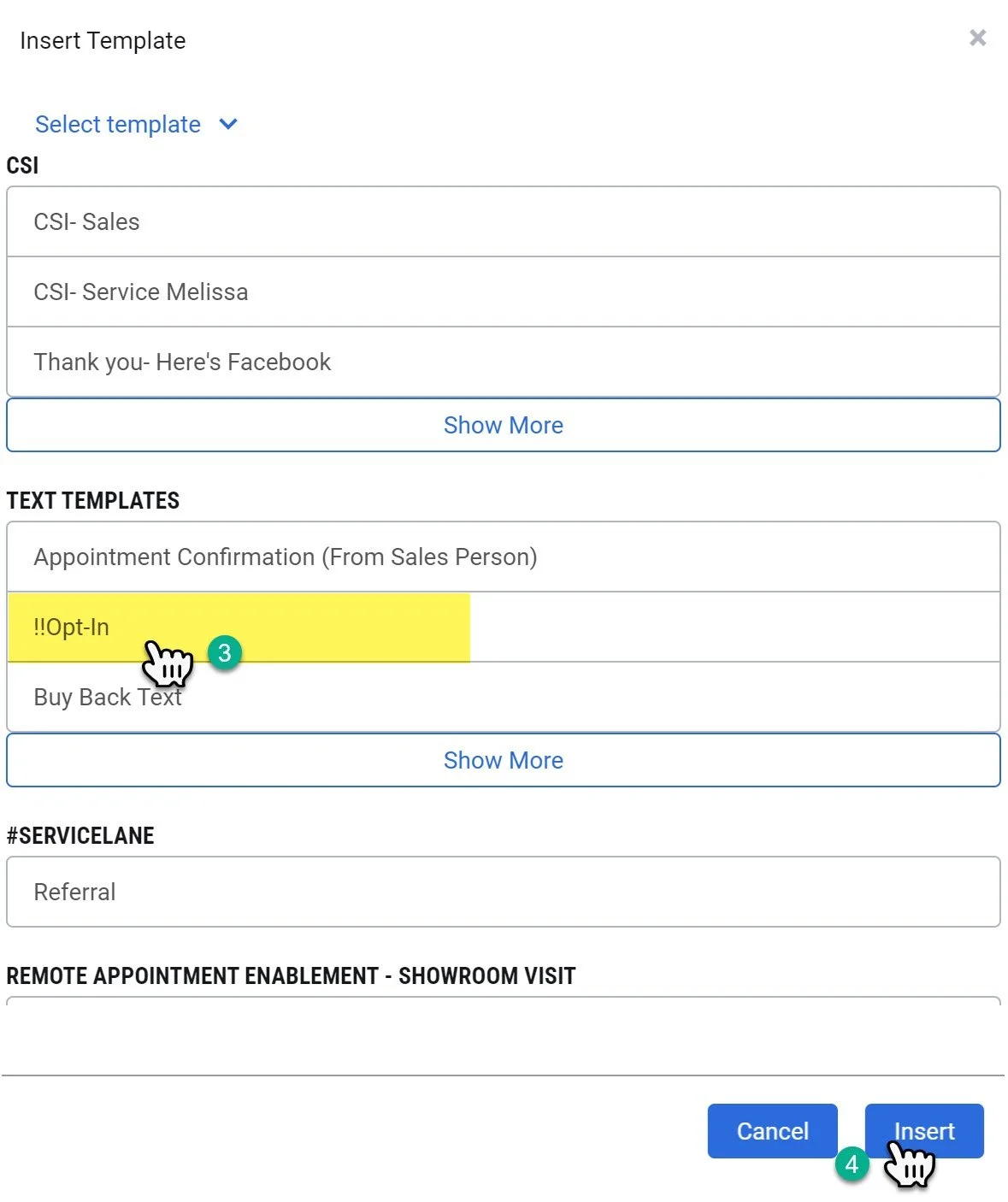
3- Choose the “!!Opt-In” Text Template.
4- Scroll down and Click “Insert”
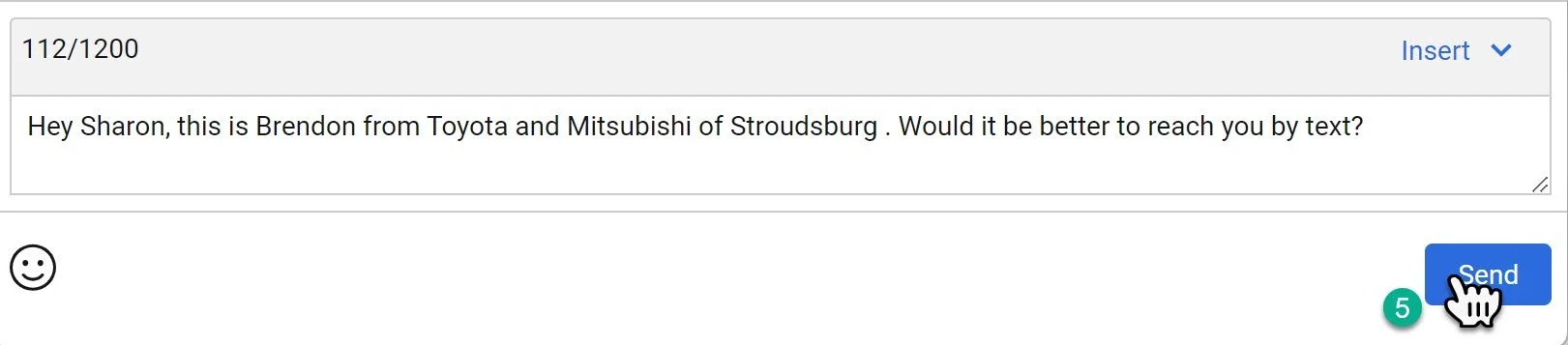
5- Click “Send”
Note:
Please make sure the name being sent to the customer has been uploaded properly. If the customer has entered an incomplete name, simply erase it. Do not edit any other content of this message, as this opt-in text has been reviewed for compliance and tested to optimize response rates.