
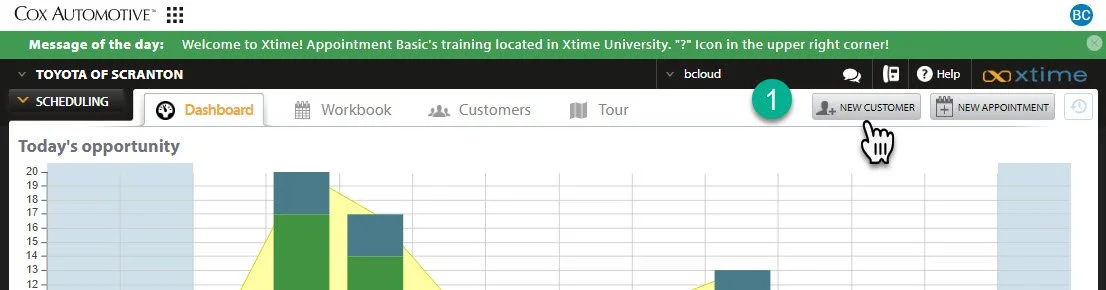
1- Begin By Clicking the “New Customer” Button in the top right corner.
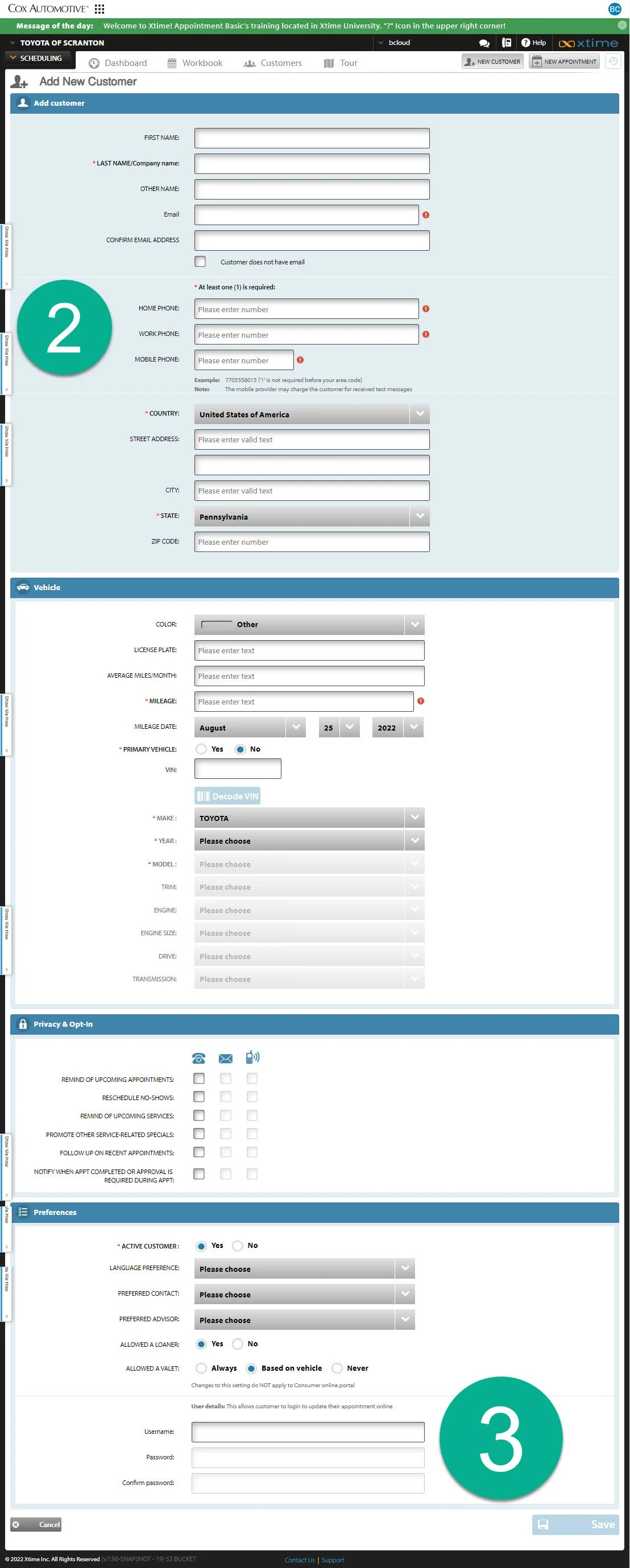
2- Fill out the customer’s information as best as you can without overwhelming. You do not need to create a username and password for the customer.
Make sure you update the contact preferences of the customer.
3- Click “Save” when completed.
Method 2- from the Customer Search Tab.
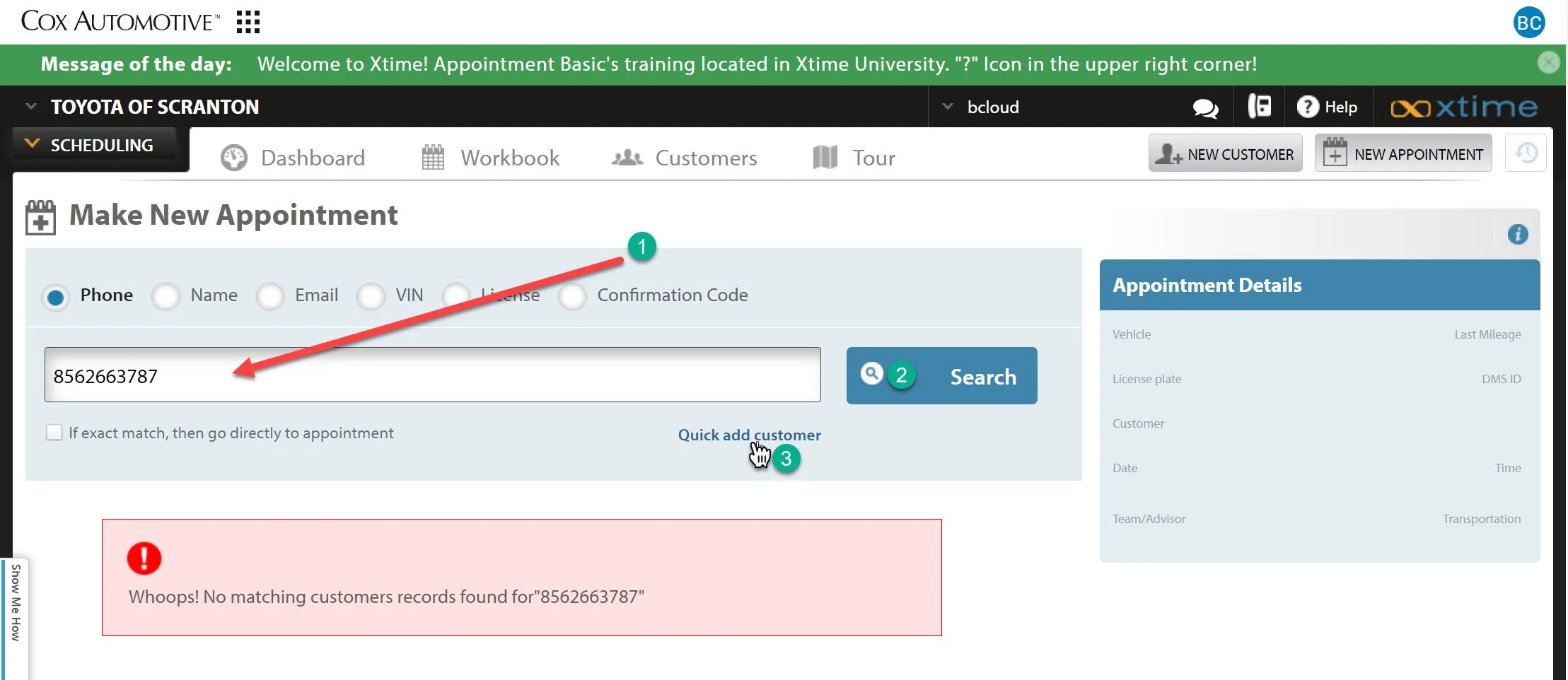
1- Begin by searching for the customer, by name, phone number, VIN, or License Plate.
2- Click Search.
3- When the search results come up with nothing, the “Quick add customer” link will appear. Click the link.
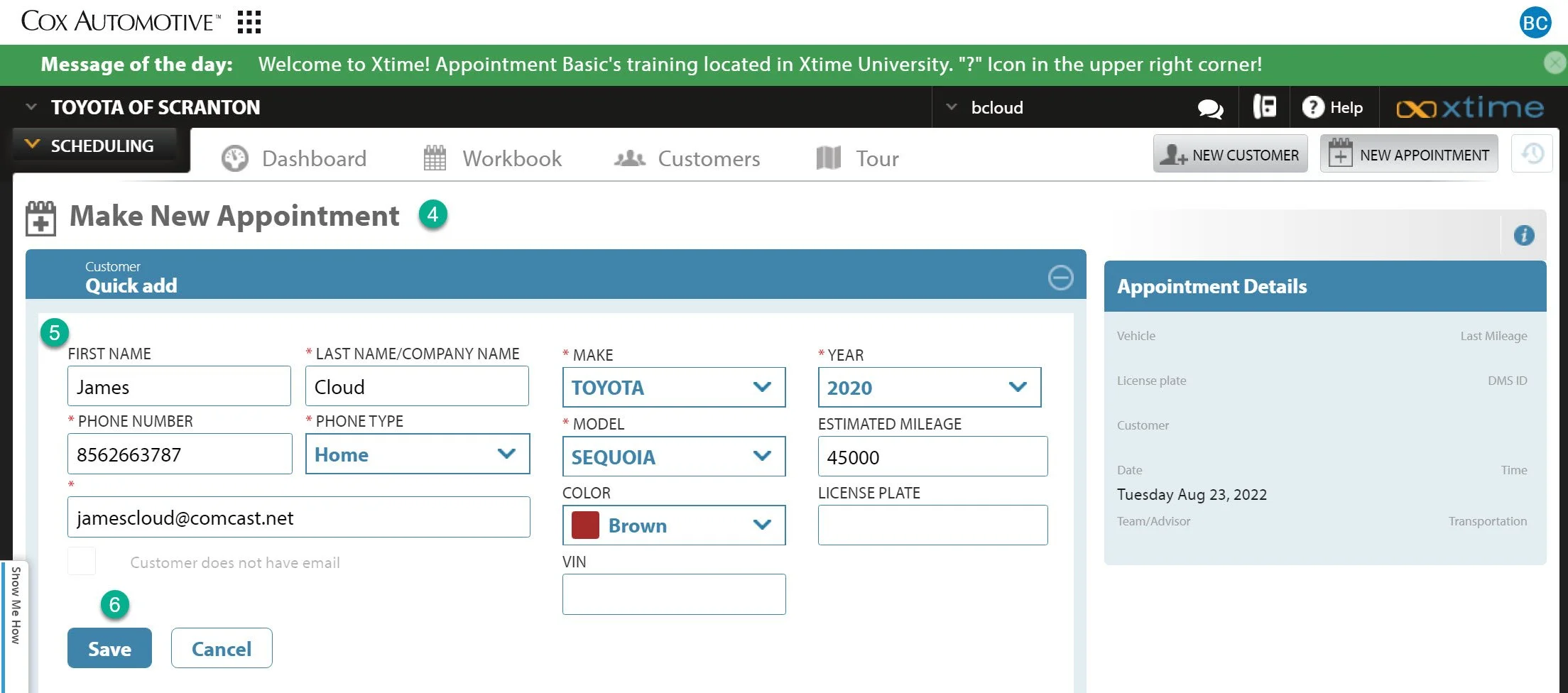
4- A new tab to create a new appointment will pop up.
5- Add the customer’s information and click the save button.
6- After you click the save button, the same button will turn into the schedule button. You can continue on to schedule an appointment from the same screen. Click here to view how to schedule an appointment.