
Xtime Message Center
All the text message communications can be viewed within this dashboard.
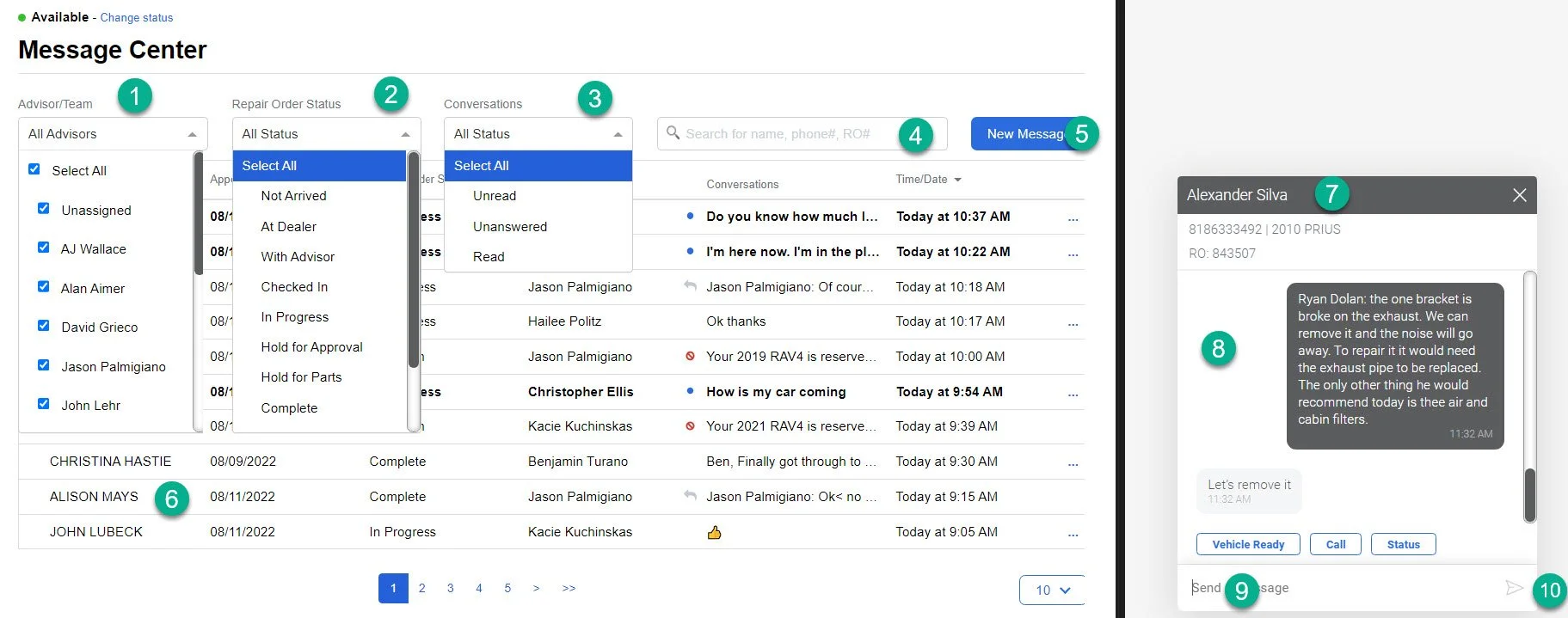
The message center can be filtered by advisor, status of repair, or status of text message. You can also search the conversation by name, phone, and RO number. By selecting a customer from inside the dashboard you will open a chat box to be able to send a text message.
1- Advisor/Team Filter: from this filter you can choose an advisor to search by.
2- Status Filter: from this filter you can choose the status of the repair.
3- Conversation Filter: from this filter you can choose the status of a conversation.
4- Message Search Bar: from this search bar you can use customer information to search for a conversation
5- Start a New Message: by clicking this button you can start a new text message with a customer
6- Customers: you can view the customer information on the dashboard.
7- Customer Information: when you open a customer’s text message communications, you can see the customer’s name, phone number, vehicle, and active RO number.
8- Communication: in this section you can review the customer communication thread.
9- Message Bar: this is the section where we type the messages we would like to send to the customer.
10- Send Button: After you have completed typing the message you would like to send a customer, click this button to send it to them.