
Desk Log Overview
The desk log is going to be the primary location of your work flow.
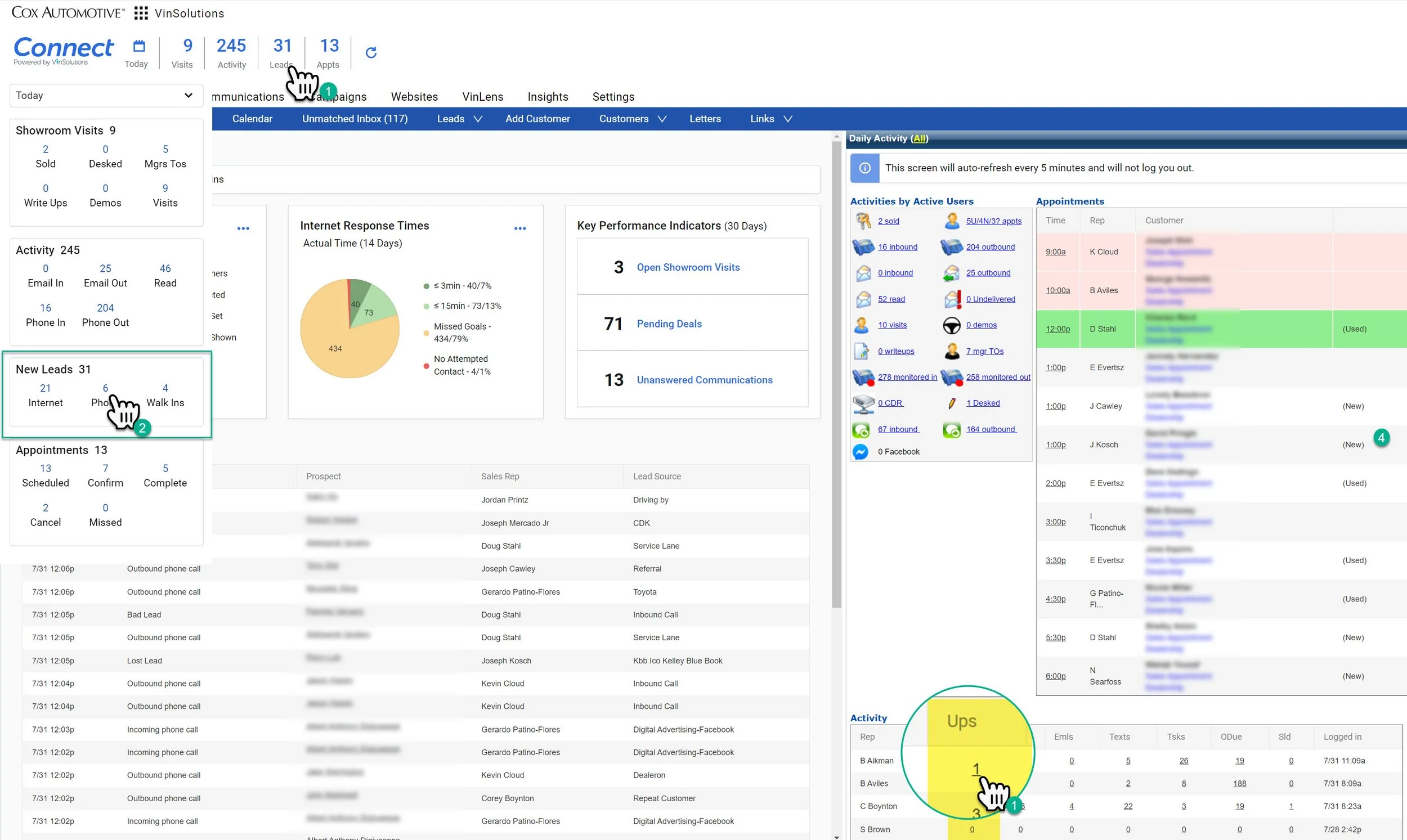
There are two ways to navigate to the Desk Log
1- You can click on the number under the “Ups” column next to the rep’s name in the activity dashboard.
-OR-
1- Click on the Connect Dashboard
2- Click on any of the numbers in the “New Leads” Section
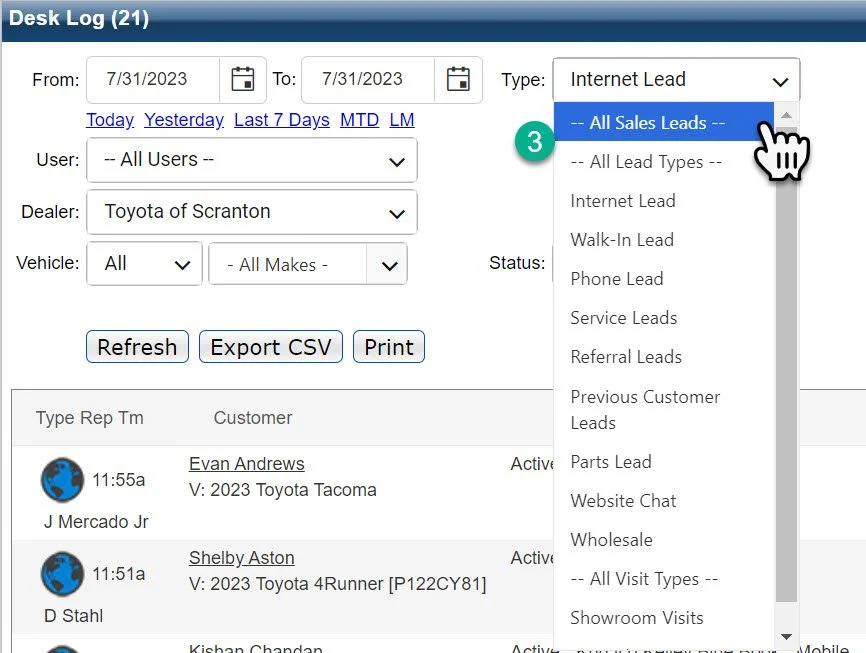
3- Confirm the type of leads you are looking for using the drop down.
You almost always want to look at “—All Sales Leads—”, unless you are looking to focus on a particular lead type.
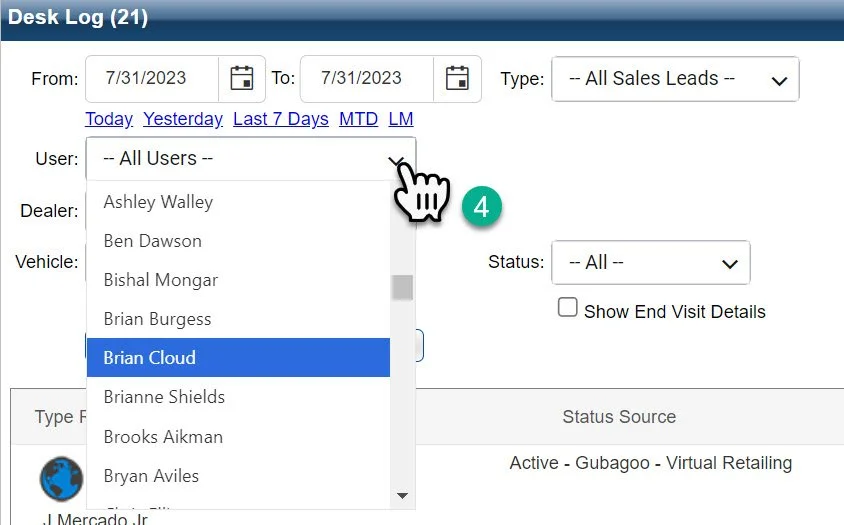
4- Confirm the user you are looking for using the drop down.
Salespeople almost always want to look at their own name. Managers are going to want to look at the entire group as well as be able to narrow down to individual users.
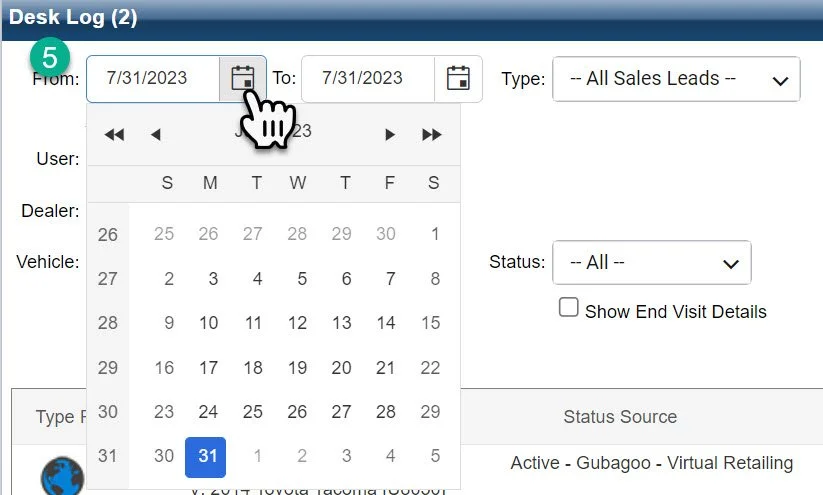
5- Confirm the date ranges you are looking for by using the calendar drop down.
Make sure you adjust the “From” and “To:” sections to select the appropriate dates. Common time frame are also available by clicking the links below.
Our main focus will be on the time frame will be 72 Hours (3 Days), and 10 Days.
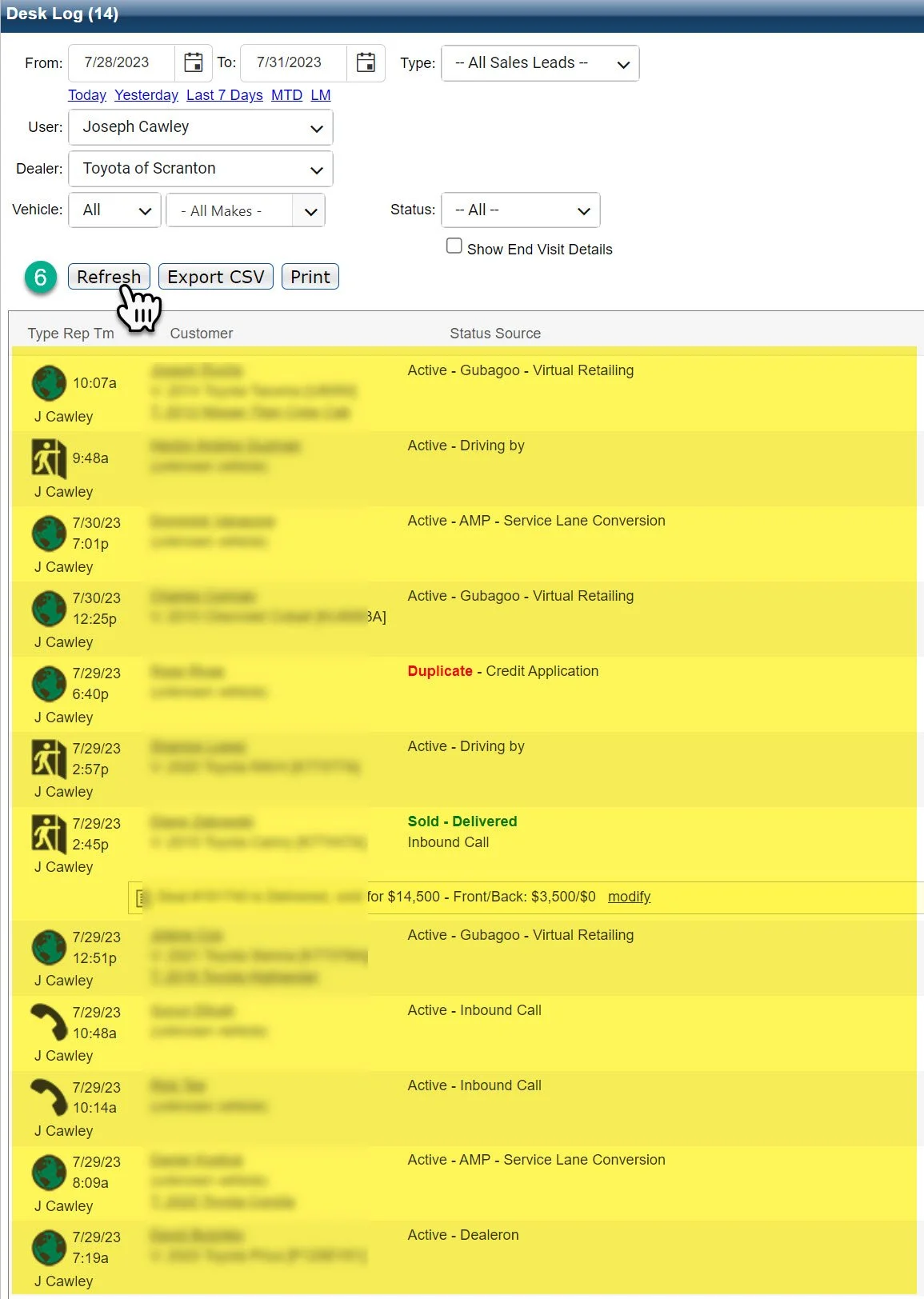
6- Once you have double checked your lead type, user, and time frames, click refresh to populate your list.
Customer names will appear below (highlighted in yellow in the photo above). Click on the customer name to open the customer profile.
Follow up with the leads appropriately based on their lead types.