Creating, sending, and replying to emails
It’s time to start crafting emails. We’ll begin by creating an email:
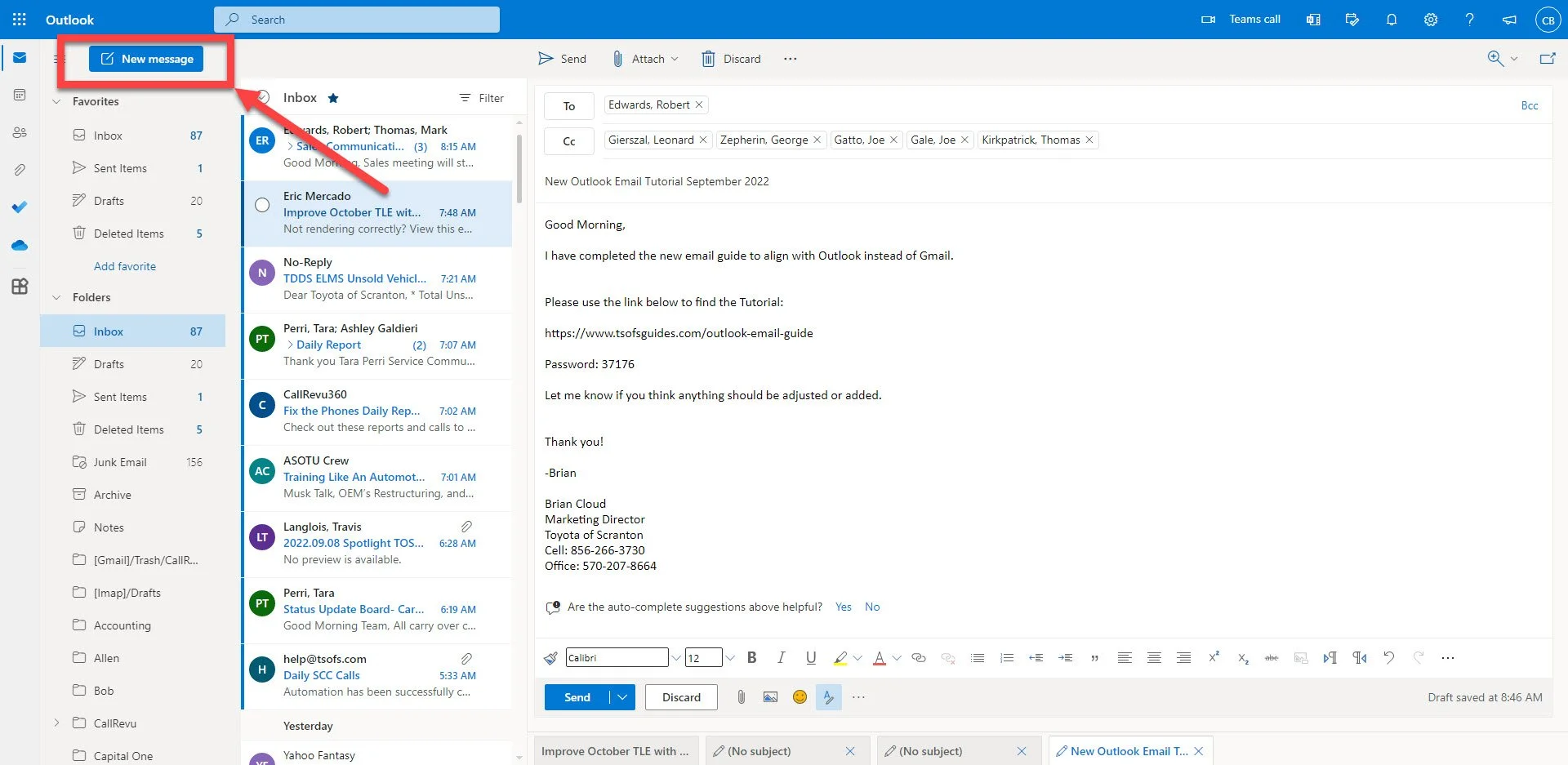
Click on the “New Message” icon to begin
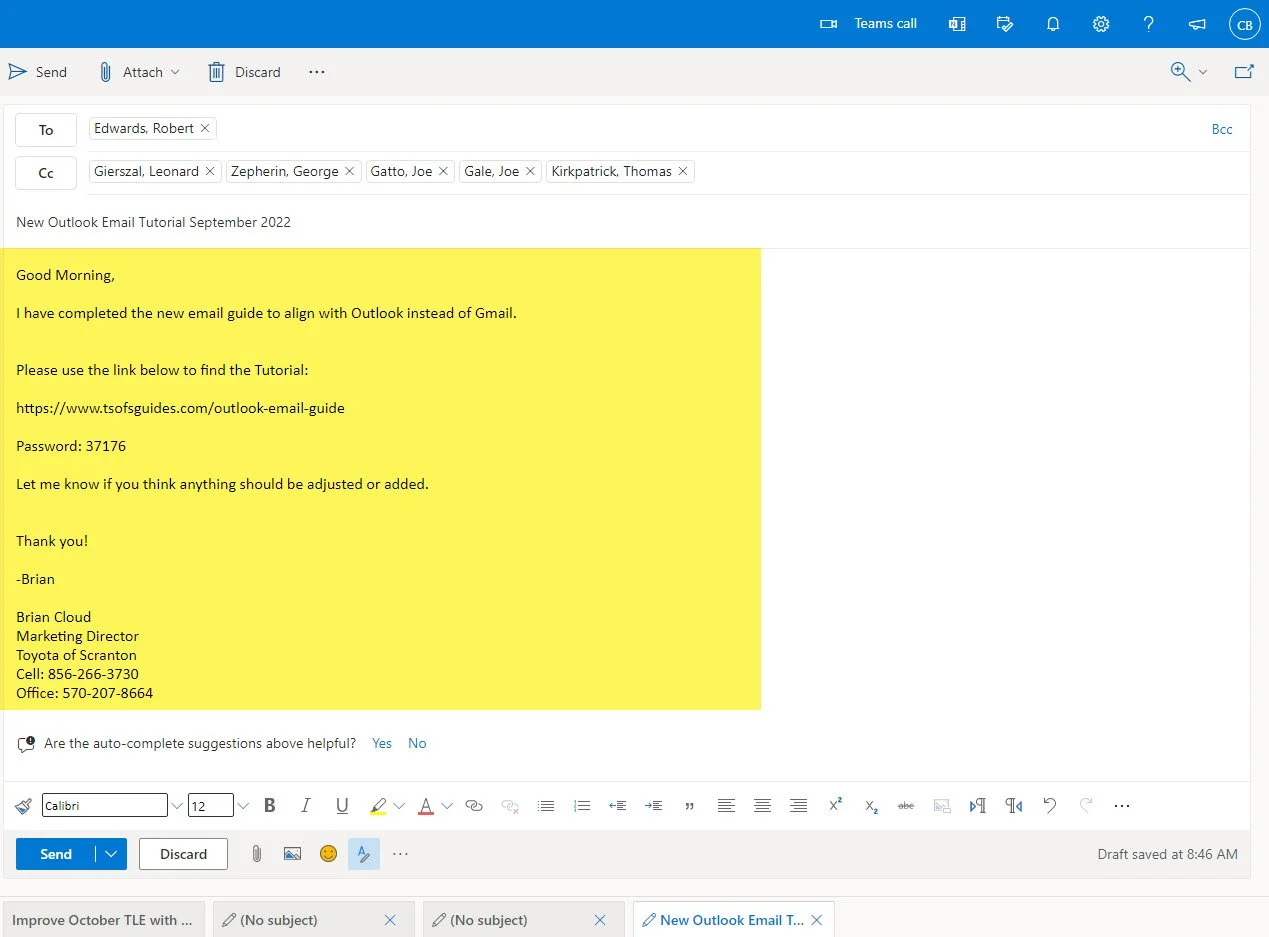
Sending Emails to the Proper People
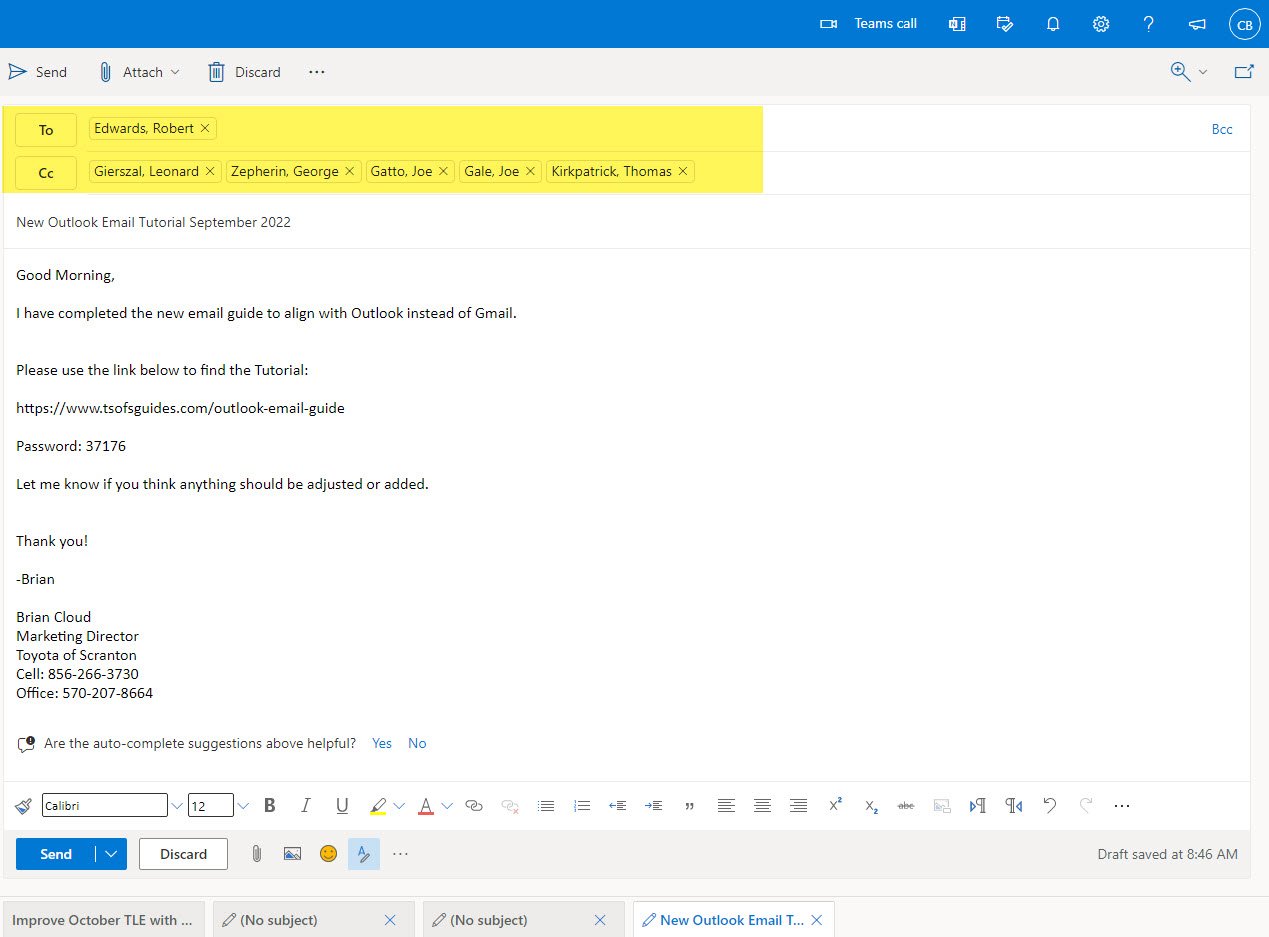
When addressing someone specific, place their email address into the “To:” section.
If the subject matter is relevant to a group of people in addition to the main recipient, use the “CC:” Section of the email to include others.
Creating a Proper Subject
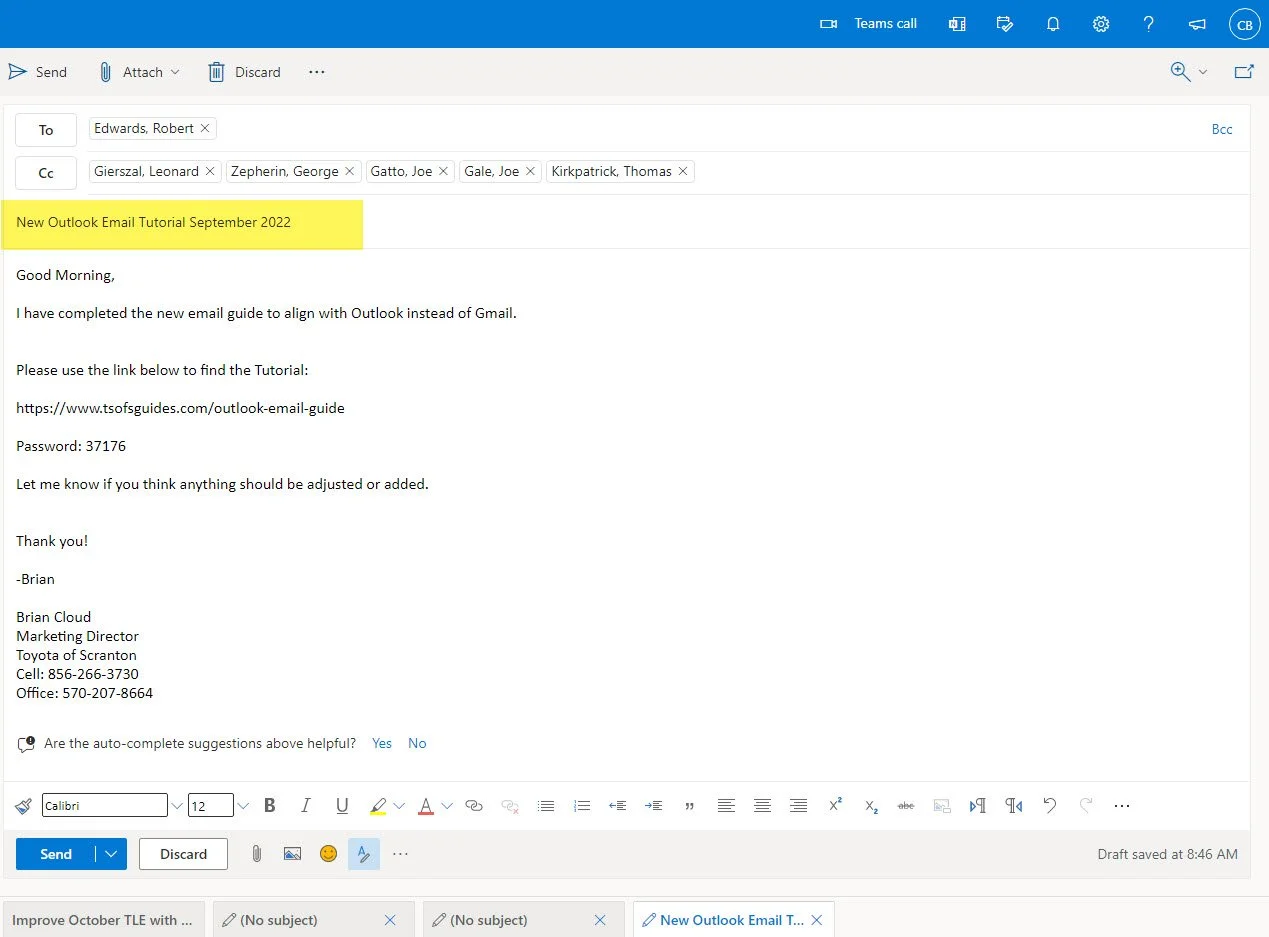
Subjects should be short and relevant to the body of the email.
Containing dates or time frames is a helpful way to recall the email at a later date should you need to.
Do not use the subject line to write a message; it should be like a title to a book
Writing the Body of an Email
Greeting:
Be sure to address the appropriate person or party.
For instance, “Good Morning” or “Hey Team”
Body:
Make sure you use complete and grammatically correct sentences.
Do not use emojis or slang symbols
No more than 3 sentences should be in the same paragraph before starting a new double-spaced line.
Closing:
Always sign off with something friendly, and your name in addition to your signature.
Click the “Send” button after you have proofread your email one last time.
Replying to Messaged Properly
When it’s time to reply to an email, take notice of the recipients of the email, who is addressed, and if a response is required of you.
If the email is sent to a group to update others and address you at the same time. Respond by clicking “Reply All”.
If you need to privately respond or need additional clarity, use “Reply” to address the original sender.
If you are unsure which to use, it’s usually best to default to “Reply All”. Make sure you are ok with all recipients seeing your response if you use “Reply All”
In larger email distributions, such as an “AllStaff” email or a departmental email that is not requesting a response from you specifically, it is in poor taste to use “Reply All” and respond to the entire group.
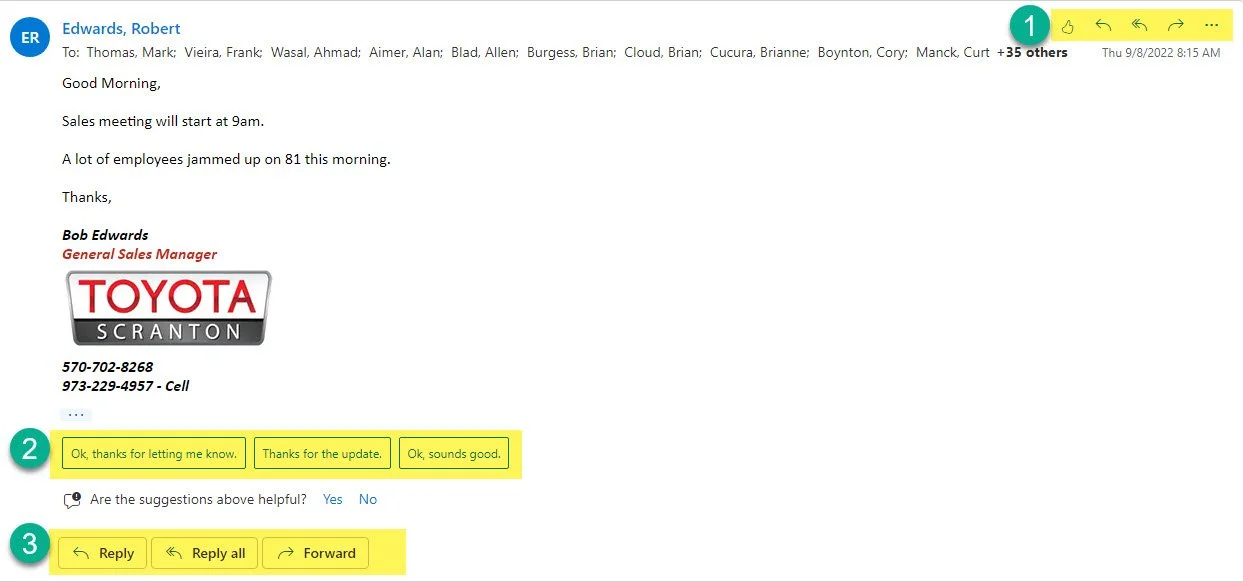
To complete these actions, take a look at the highlighted sections below.
1- Quick Action Bar: Like, Forward, Reply or Reply all
2- Quick Responses- These are auto generated responses to help you quickly reply
3- Standard Reply Options
Please remember forwarding a message will also forward any attachments, replying will not resend the attachements.