
Creating an Email Signature
Signatures are a professional way to make sure your emails always include your contact information.
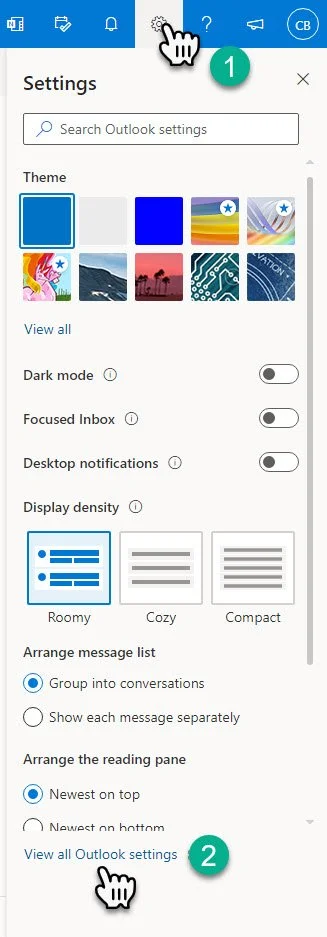
1- In the top right corner of your browser, select the “Gear/Setting Icon”
2- Click view all Outlook Settings
This will open a new pop-up window.
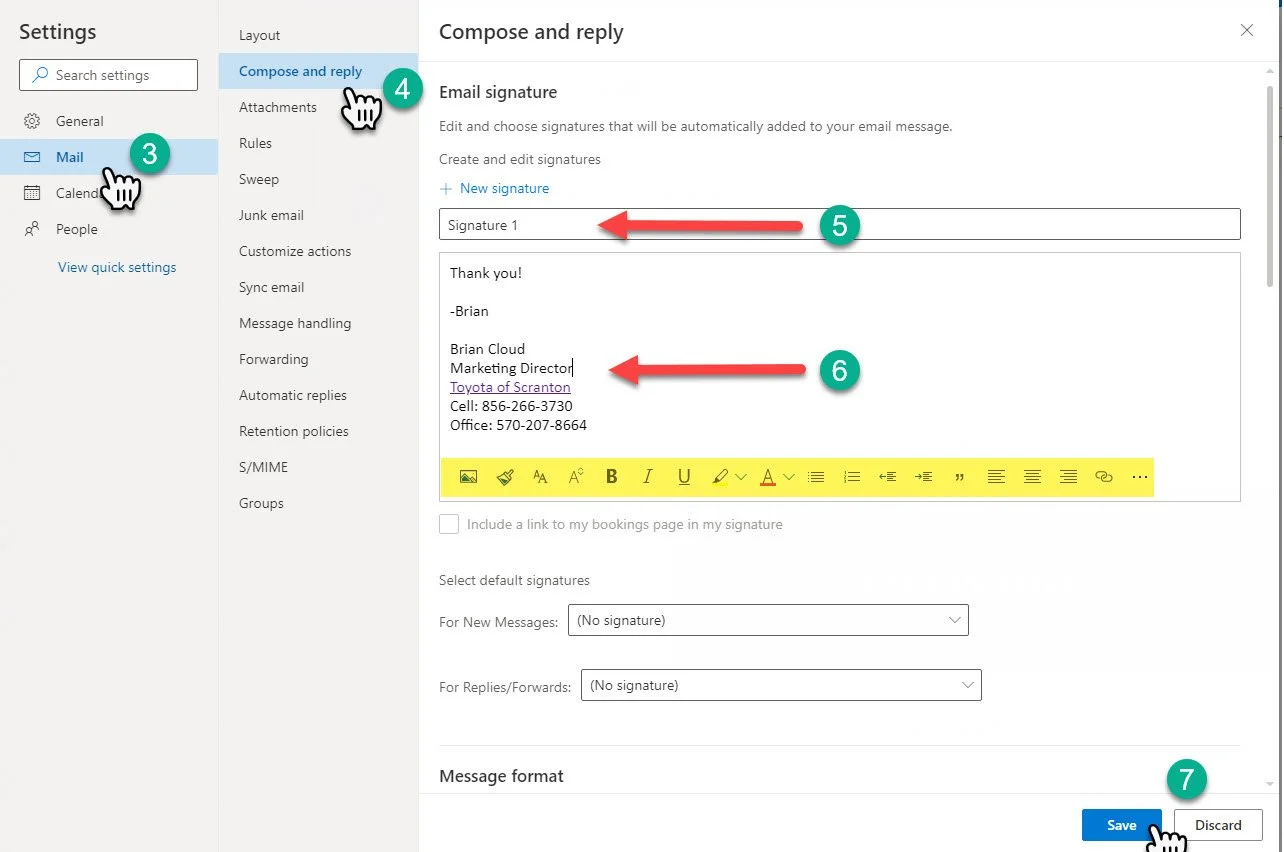
3- Click “Mail”
4- Click “Compose and reply”
5- Name your new Signature
6- Compose your next signature.
You can add links, photos, or adjust the signature using the highlighted toolbar. I strongly suggest limiting yourself to links for the sake of formatting.
7- Click “Save”
Your signature is complete, however, we need to apply it to your emails.
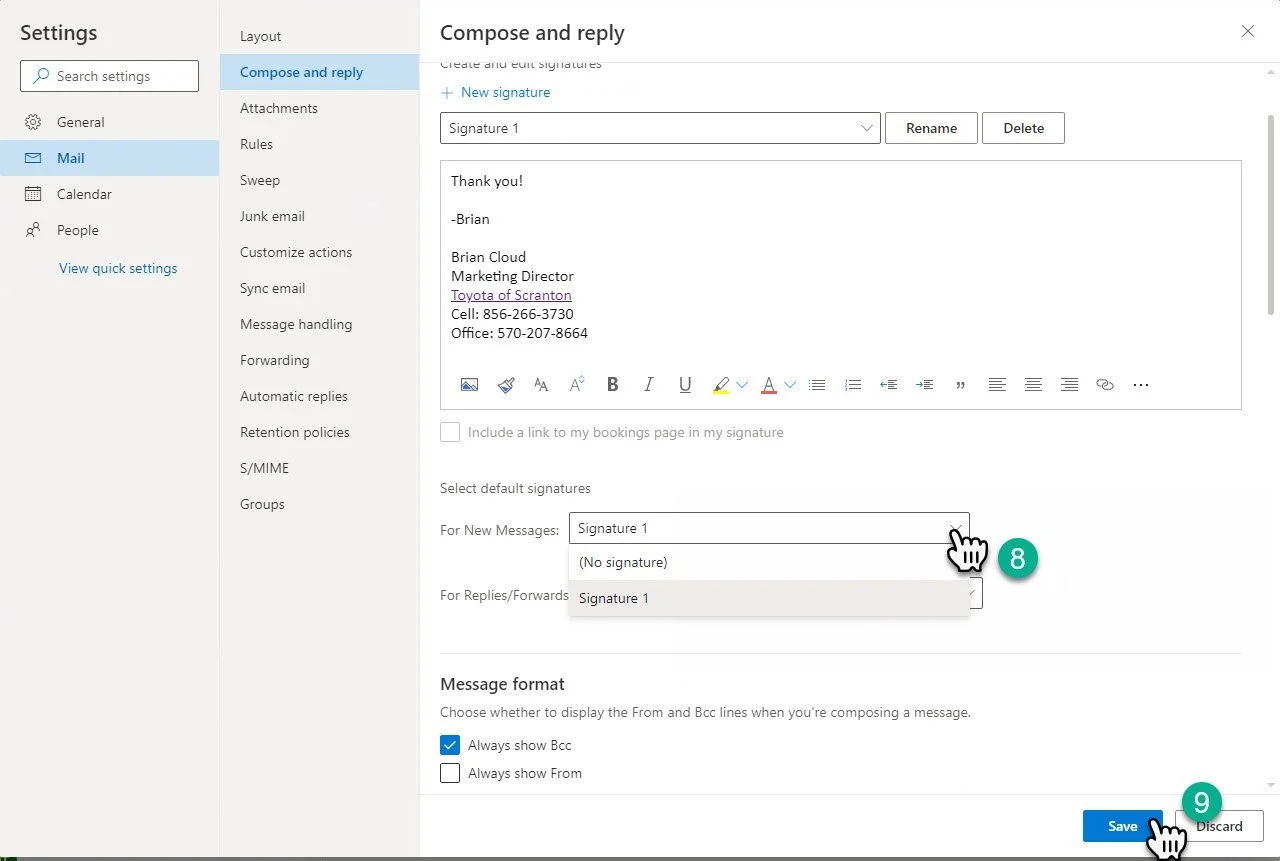
After you have clicked “Save” in the previous step.
8- Choose the signature by click the drop down under “Select default signatures”
9- Click “Save” again.
Your signature will now attach to your emails.