
Outlook Overview
Now that you have logged into your email. It will automatically open your inbox. It will look like this:
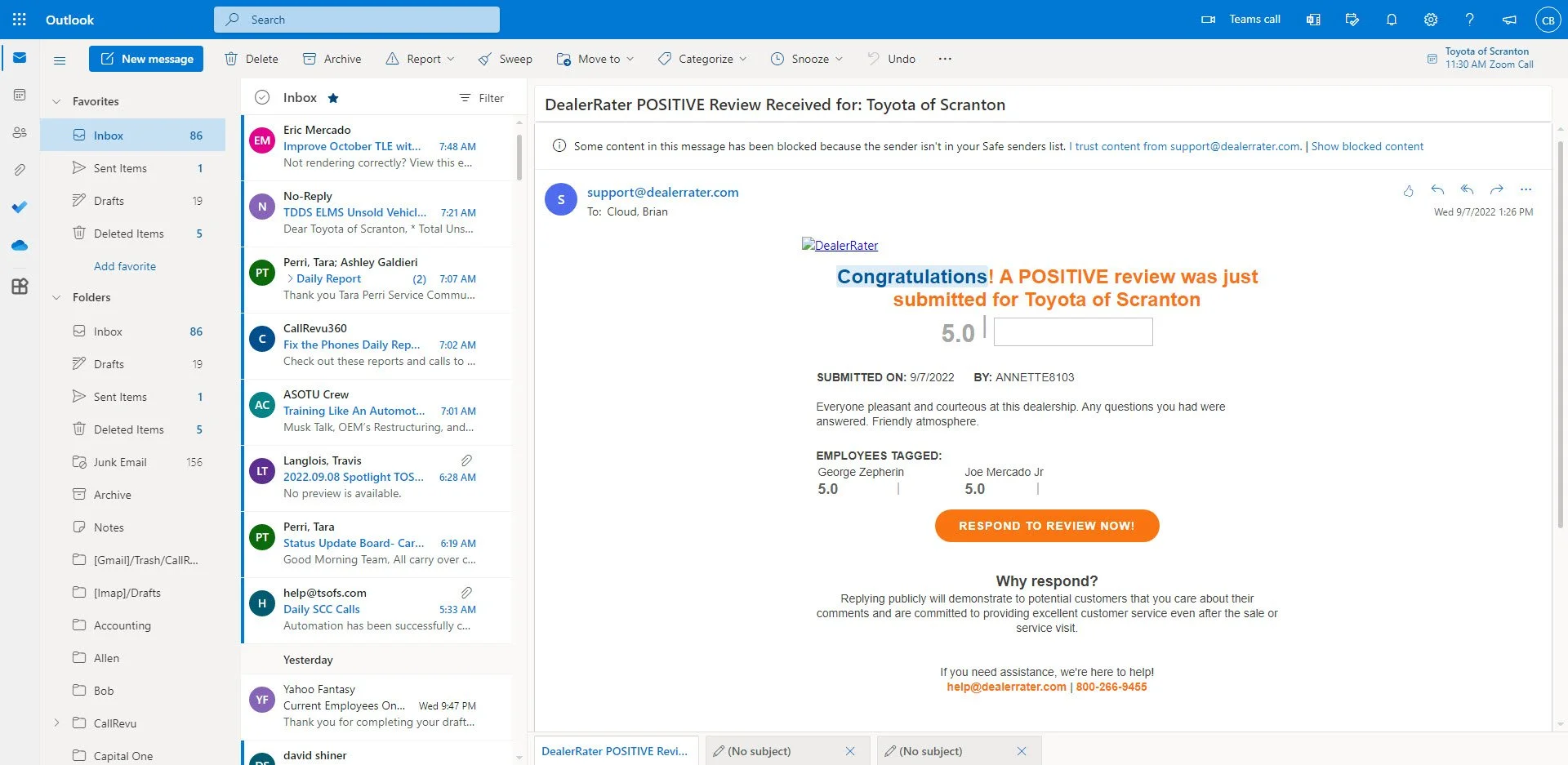
The highlighted section below is your
“Folder Pane”
In addition to your standard inbox, folders can be created to help you keep your inbox and important messages organized.
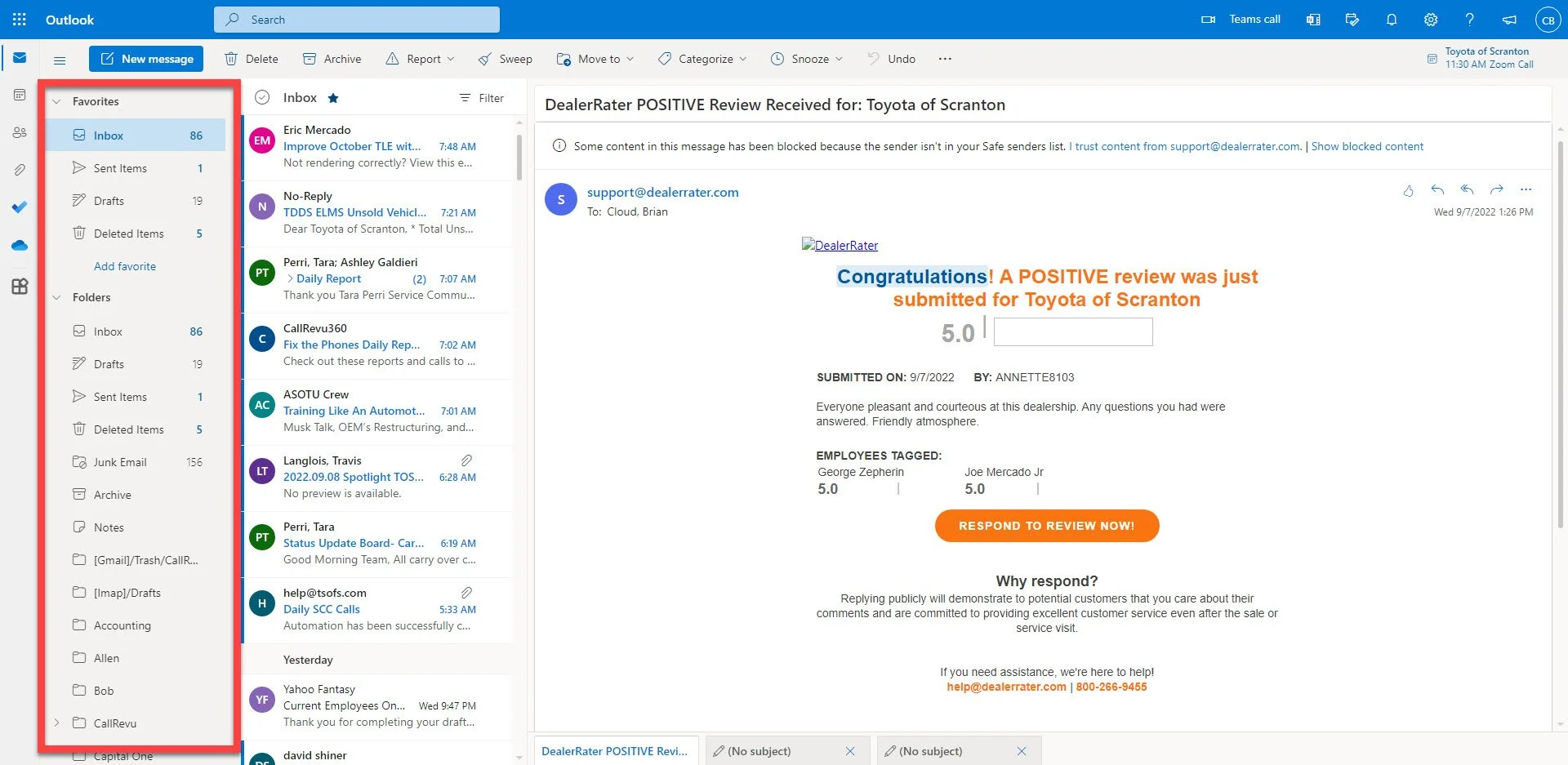
The highlighted section below is your
“Message List”
This is where you can view your messages from the selected folder
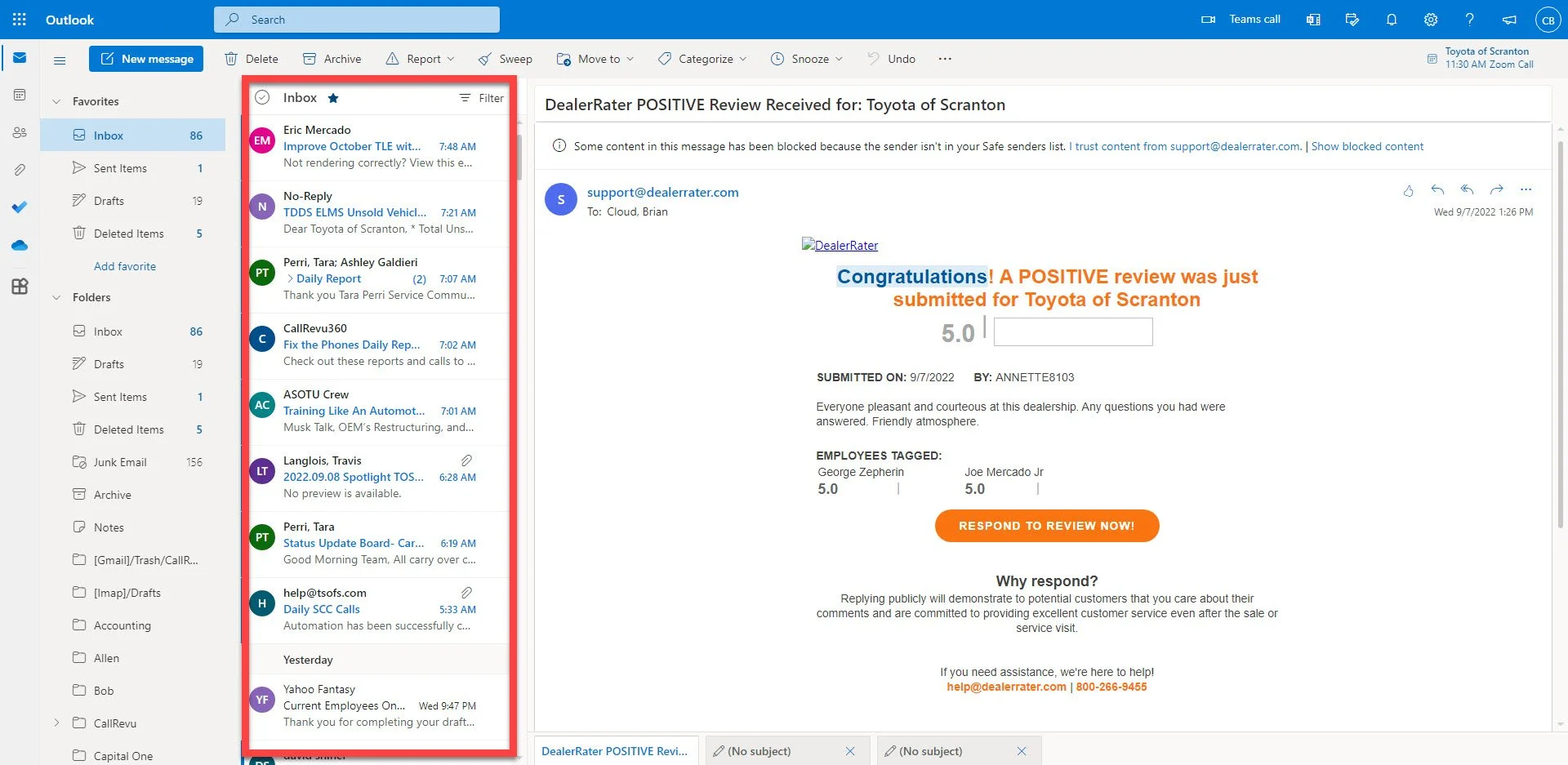
The highlighted section below is your
“Reading Pane”
This is where you can read your emails and view any attachments.
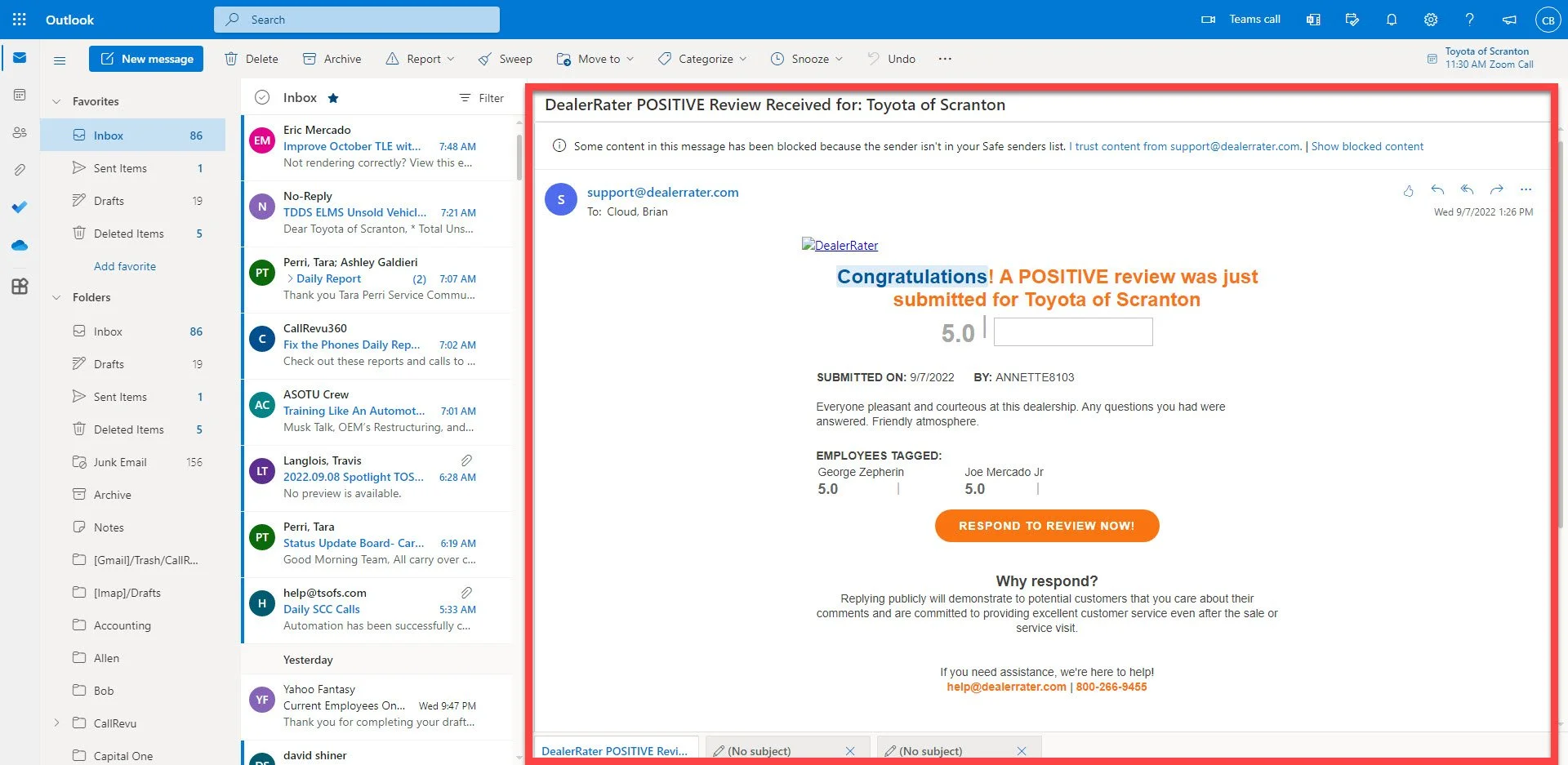
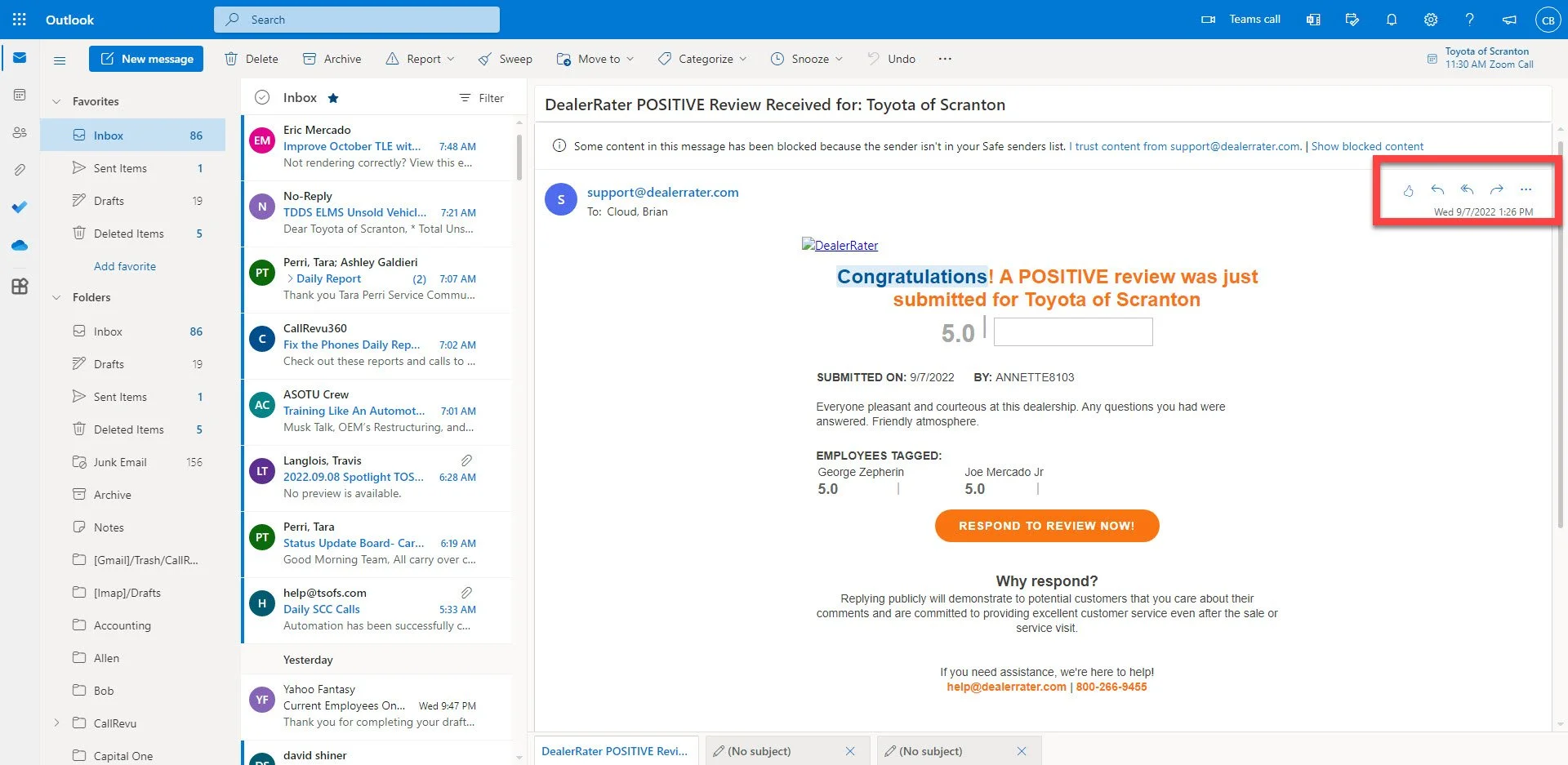
The highlighted section below is your
“Quick Action Bar”
This is where you can create an action in response to the email you are currently reading.
A Thumbs Up- This is to “Like an email”
A single left arrow- This is to start a reply to only the sender
A double left arrow- This is to “Reply All”
A right arrow- this is to forward a message.
Three dots- this is for additional options.
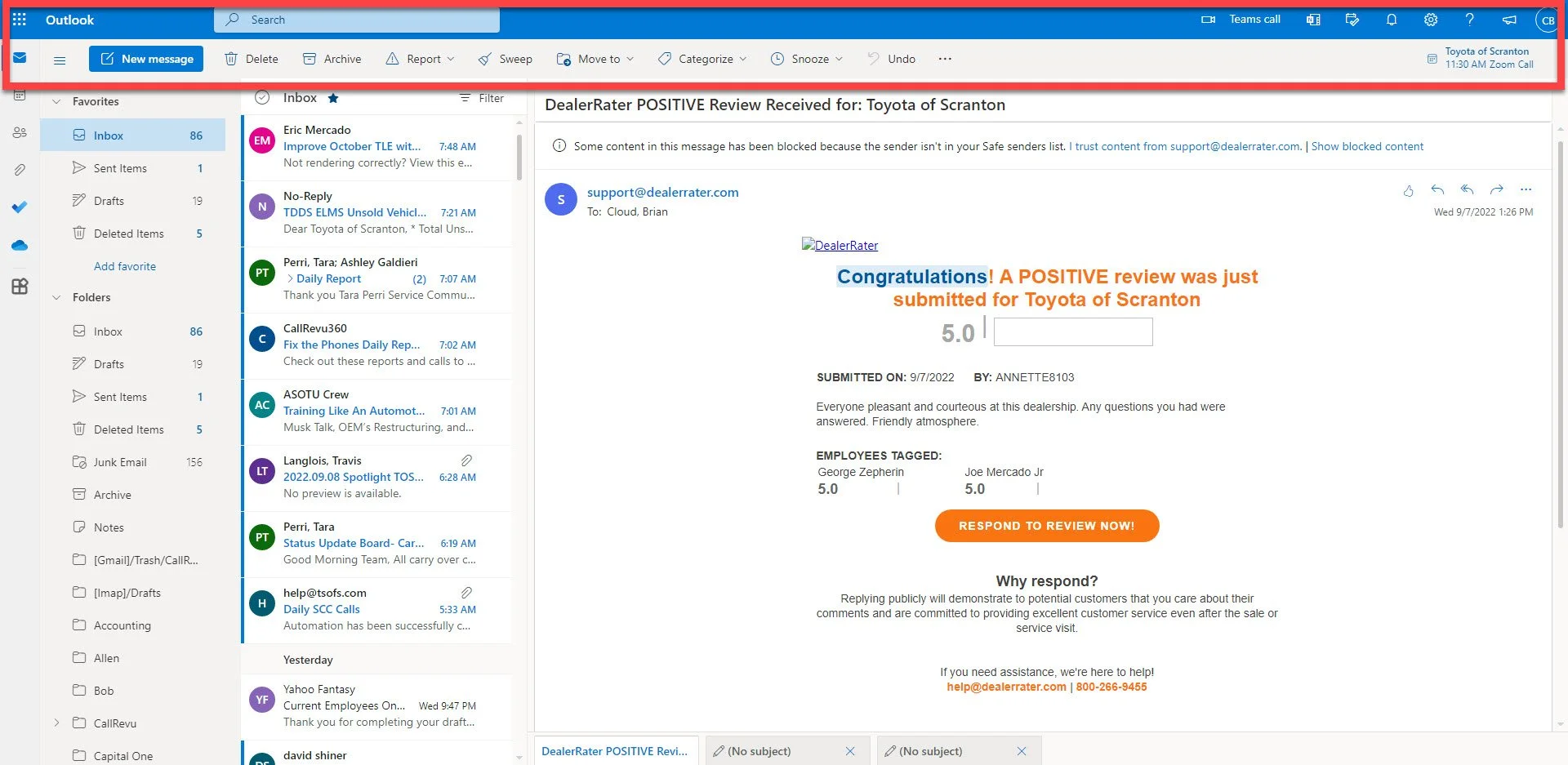
In the highlighted section below are your
“Options and Menu Bars”
Towards the left of this section, you can create a new message.
At the very top, where it says “Search” you can search all of your inboxes for people and phrases.
With this basic understanding of the inbox, you are ready to start sending emails.
For a video tutorial of the topics covered above, please click here.
Click here to learn how to learn how to create, send, and reply to emails