
Sending Attachements
There are two methods to send an attachment
Method 1: Uploading from files
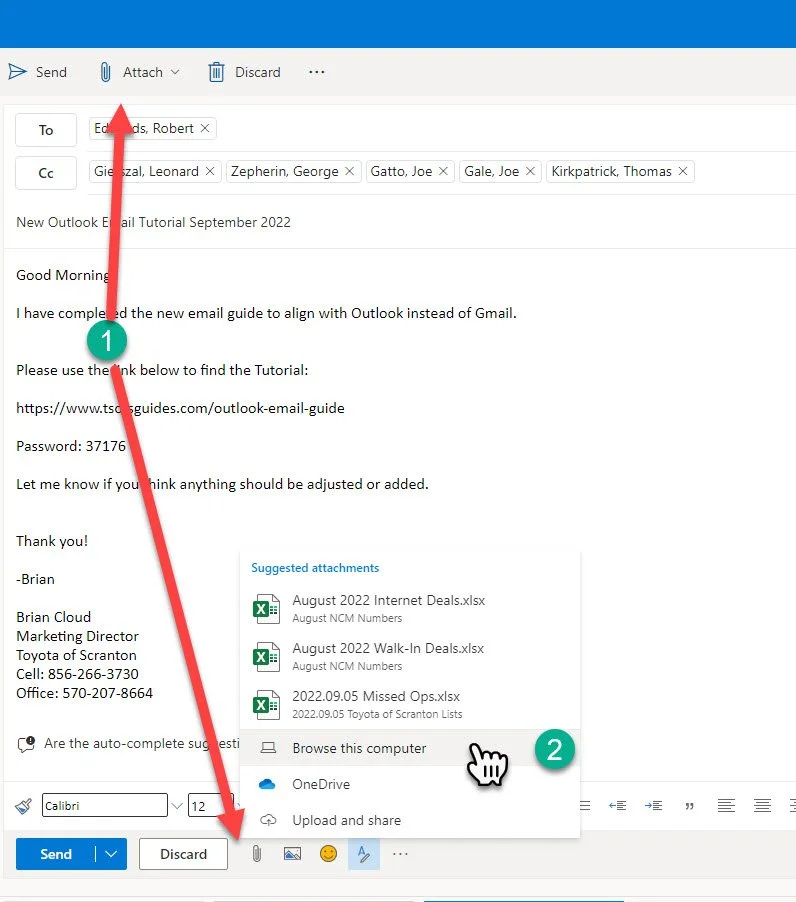
1- Click on one of the two “Attach” Icons
2- Select where the file is. Generally, this will be on your computer.
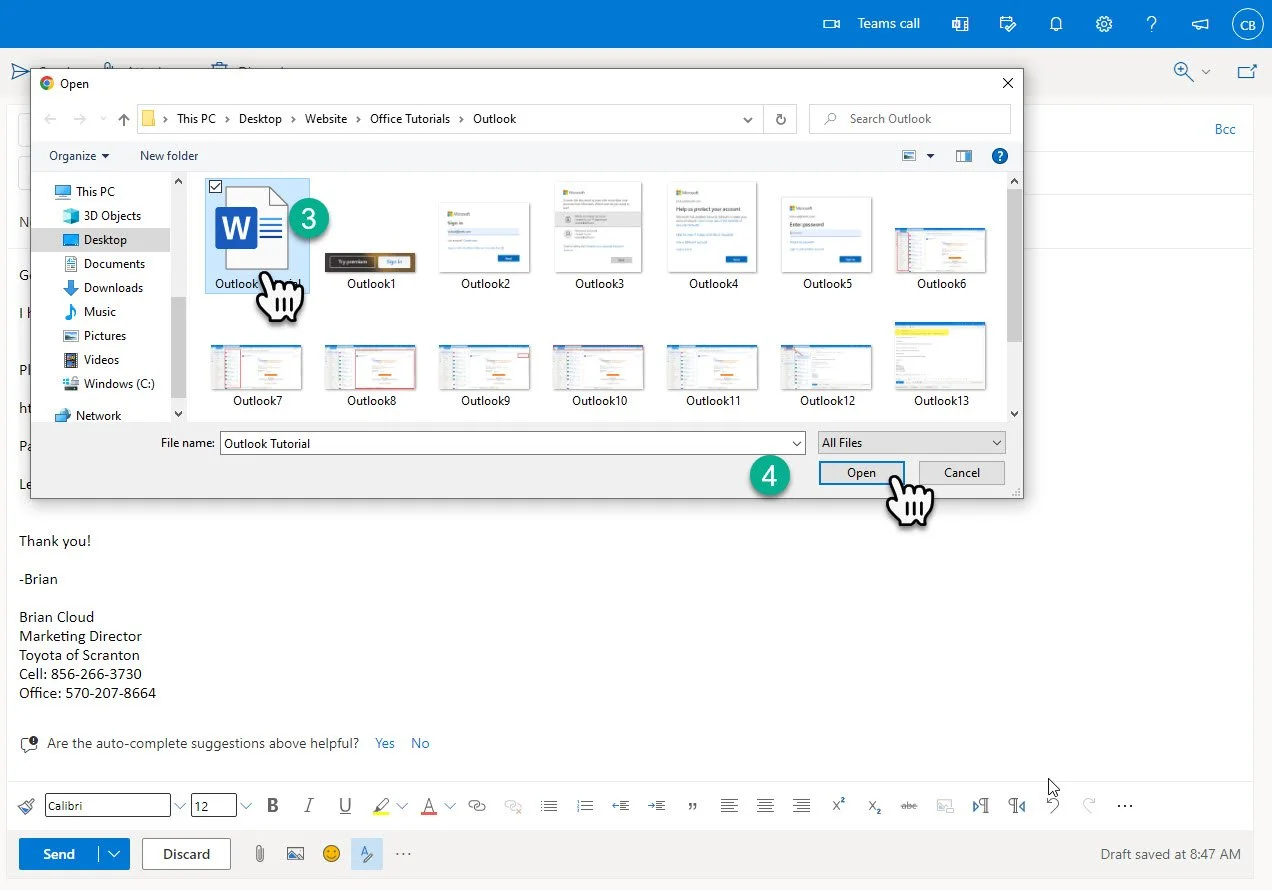
3- Choose the file you wish to send
4- Click “Open”
The file is now attached to the email.
Method 2: The Drag and Drop
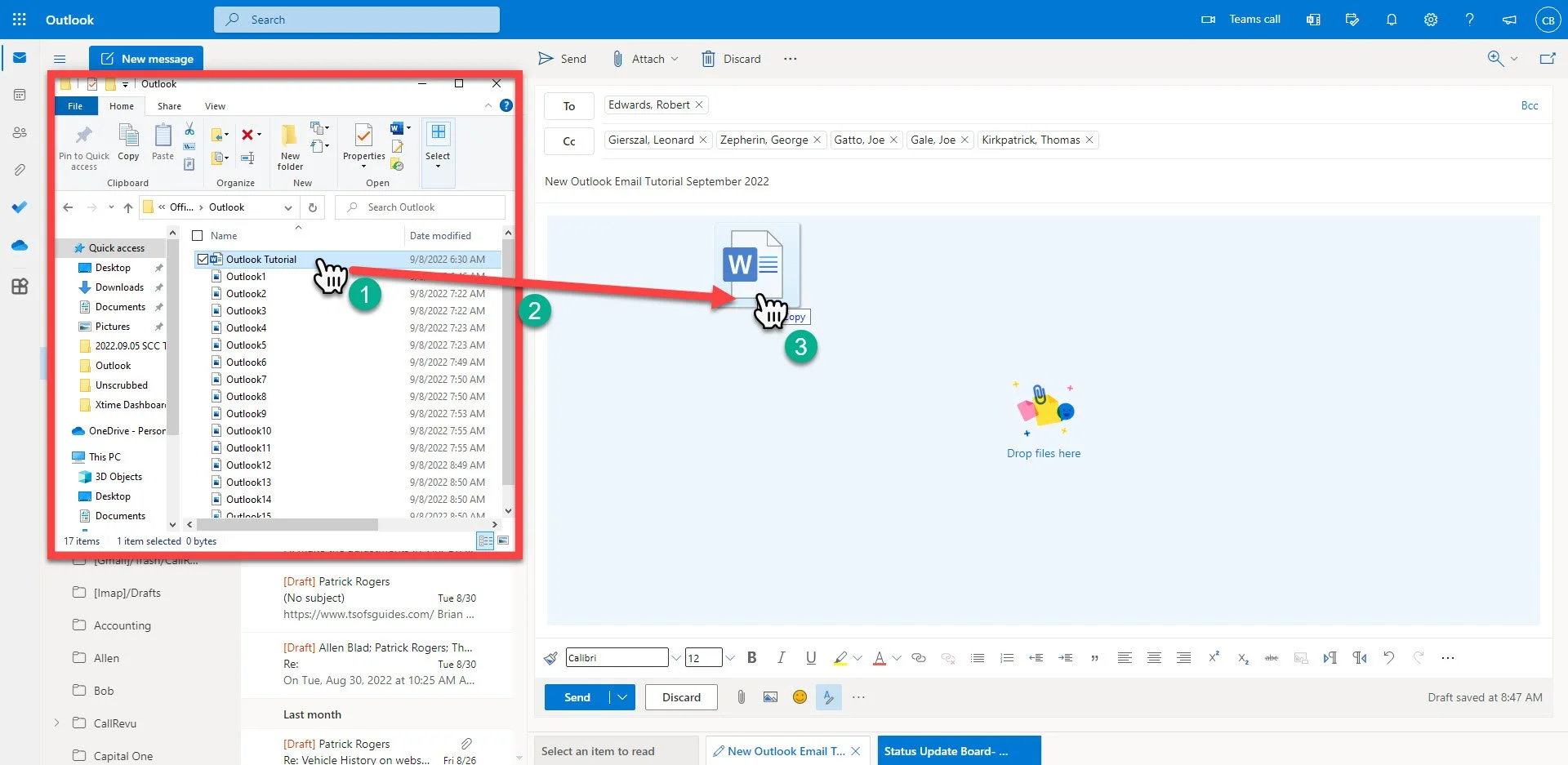
1- Locate the file on your computer, click and hold on it.
2- Drag the file over the body of the email.
3- Drop the file over the body of the email.
The file is now attached to the email.
Receiving Attachements
It is critical that you only download files from senders you know, and files you were expecting from them.
Any file you receive that you are unsure about, please contact the IT Department prior to taking any action.
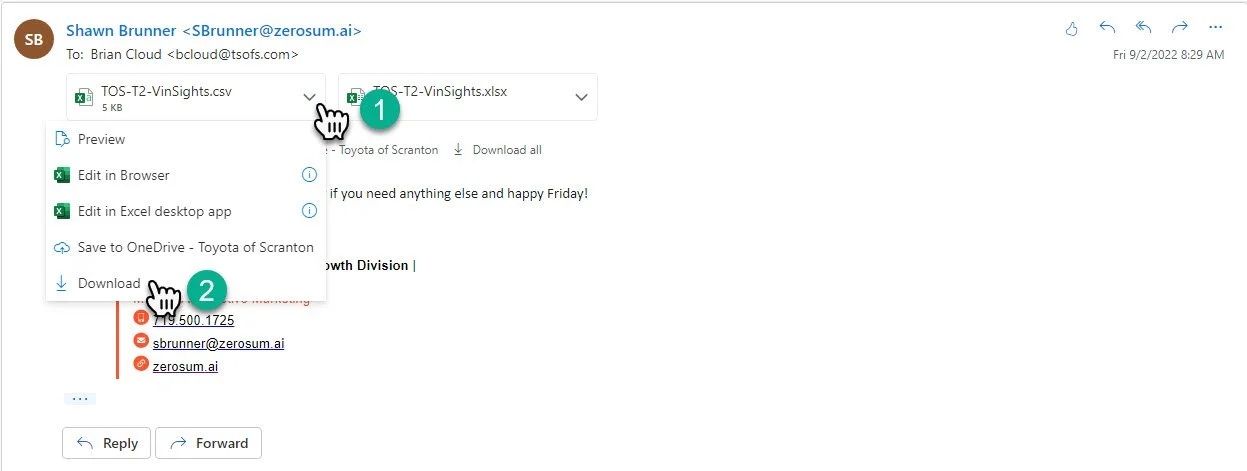
1- Click the dropdown arrow next to the file.
2- Select “Download”
The file should now be in your “Downloads” folder on your computer.