
Inbox Organization
Creating a Folder
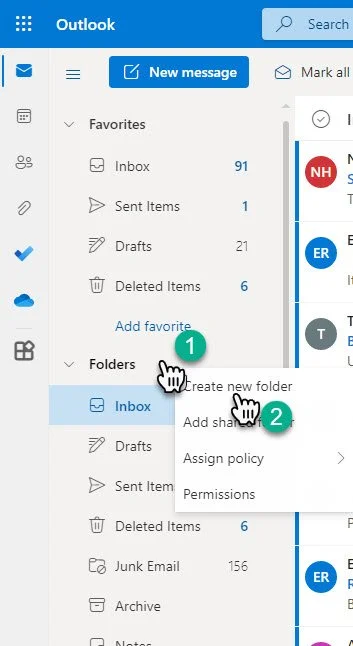
1- Right click over the “Inbox” to open the menu
2- Select “Create new folder”
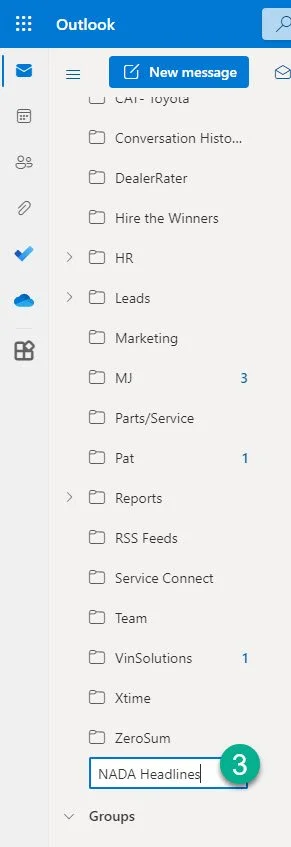
3- At the bottom of your folders, a new folder will pop up and allow you to name the folder.
When you completed the naming process, it will reorder alphabetically.
Moving Messages into Folders
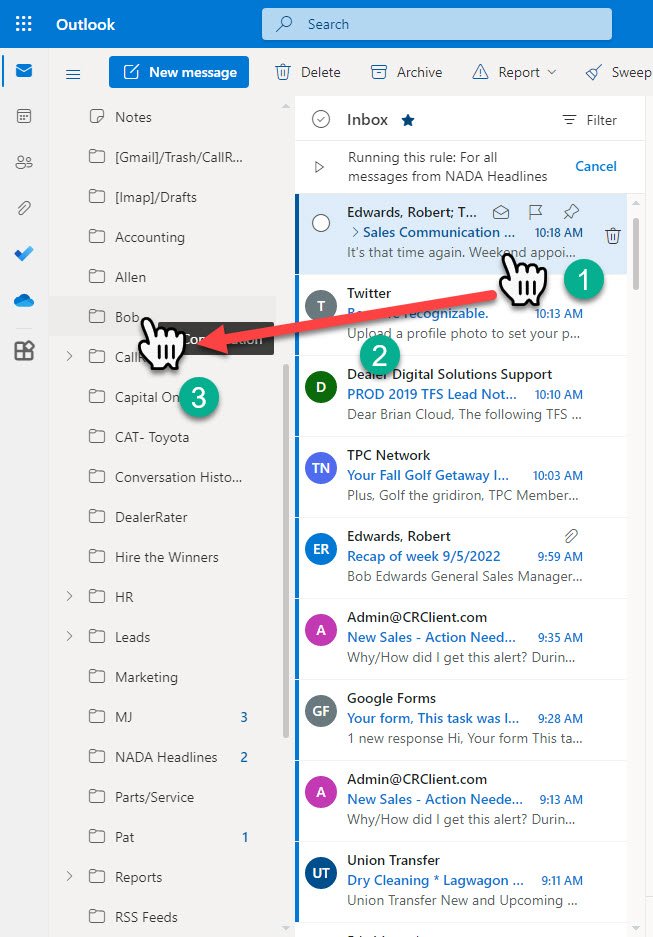
1- Click and hold on the message you wish to move.
2- Drag the file over the folder you wish to put it in.
3- Drop drop it in the folder.
Creating a Rule
You can make messages from people or organizations automatically filter and add themselves to other folders or take other actions.
We do this by creating rules.
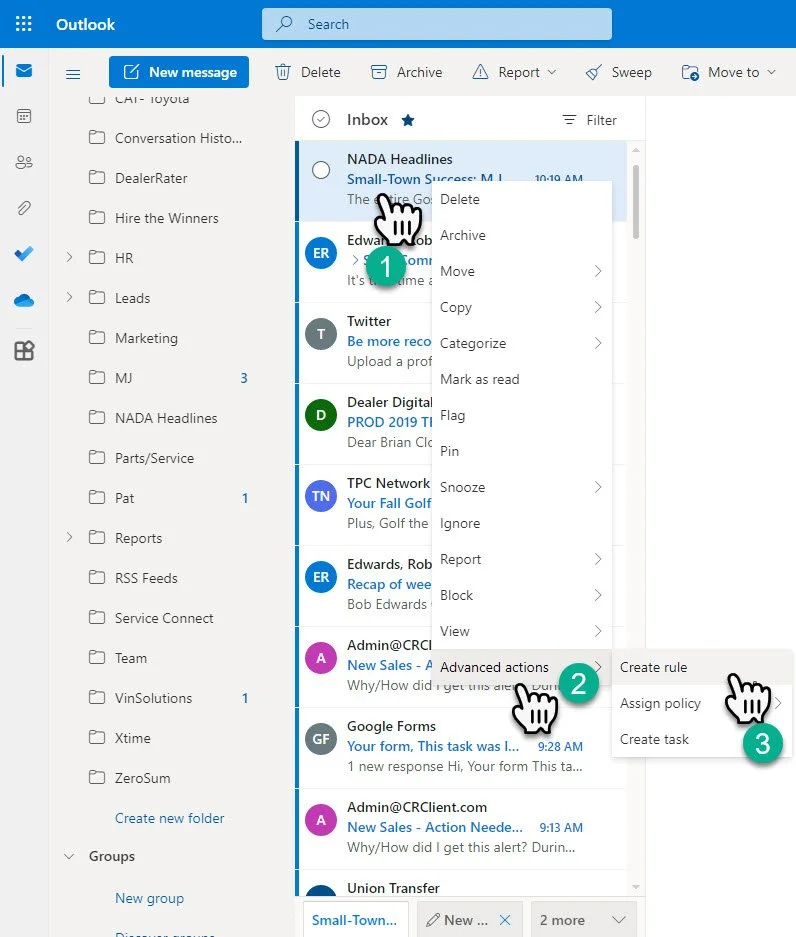
1- “Right Click” on an email you would like to make a rule for.
2- Hover over Advanced Options
3- Click on Create Rule
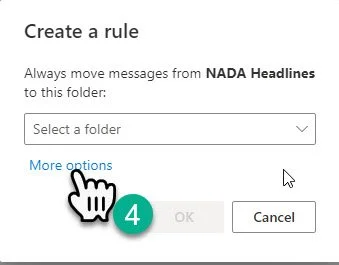
4- Click on “More options”
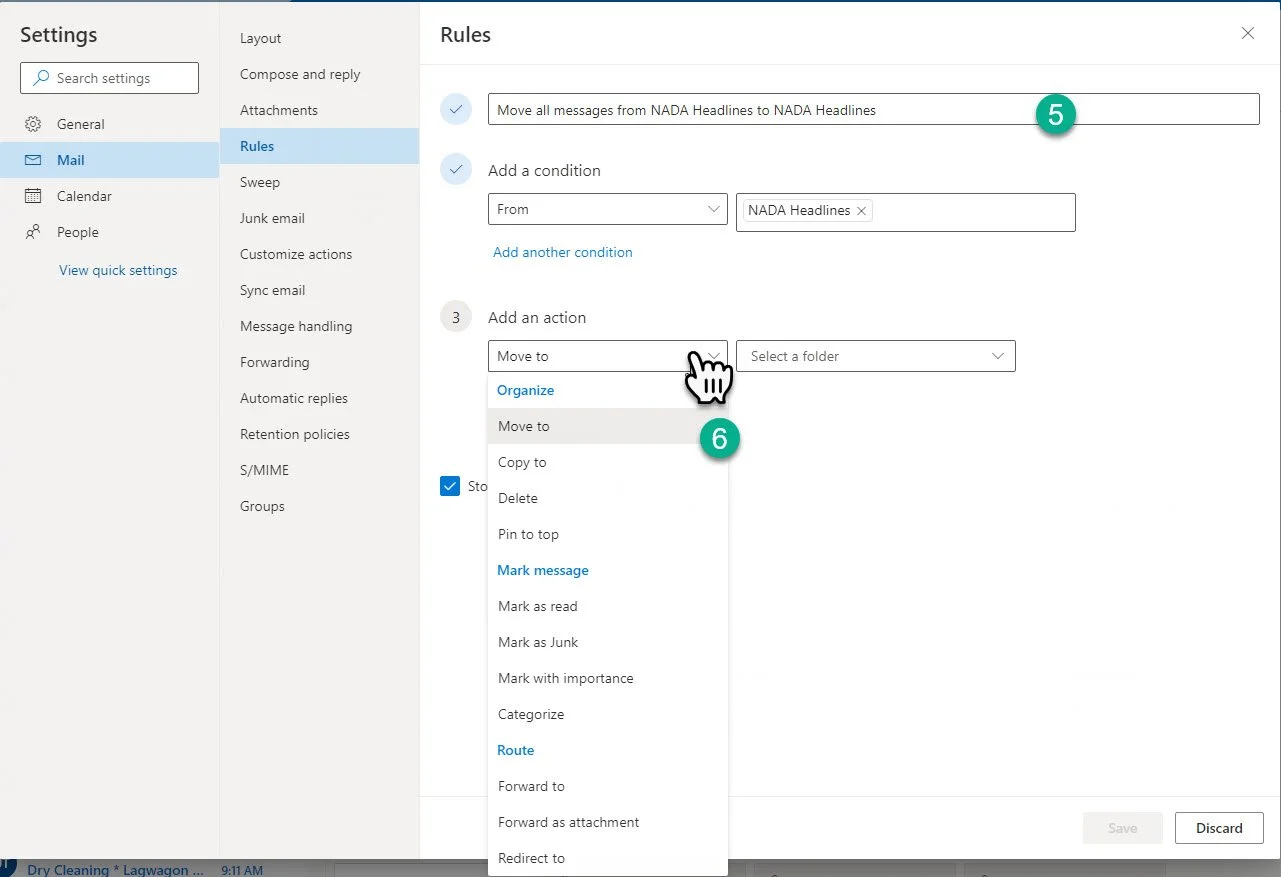
5- Name your Rule
6- Select an Action
These will auto-generate for the most part.
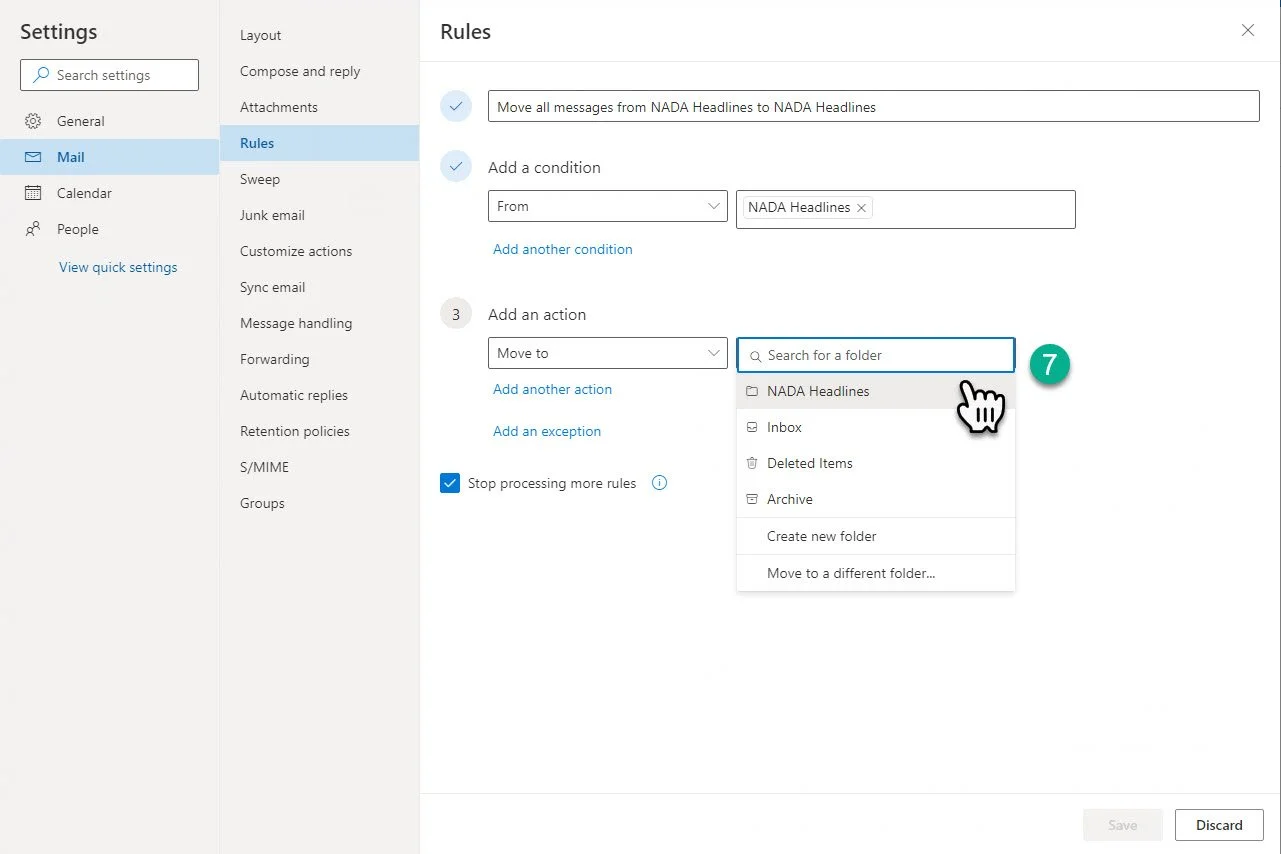
7- Choose the destination
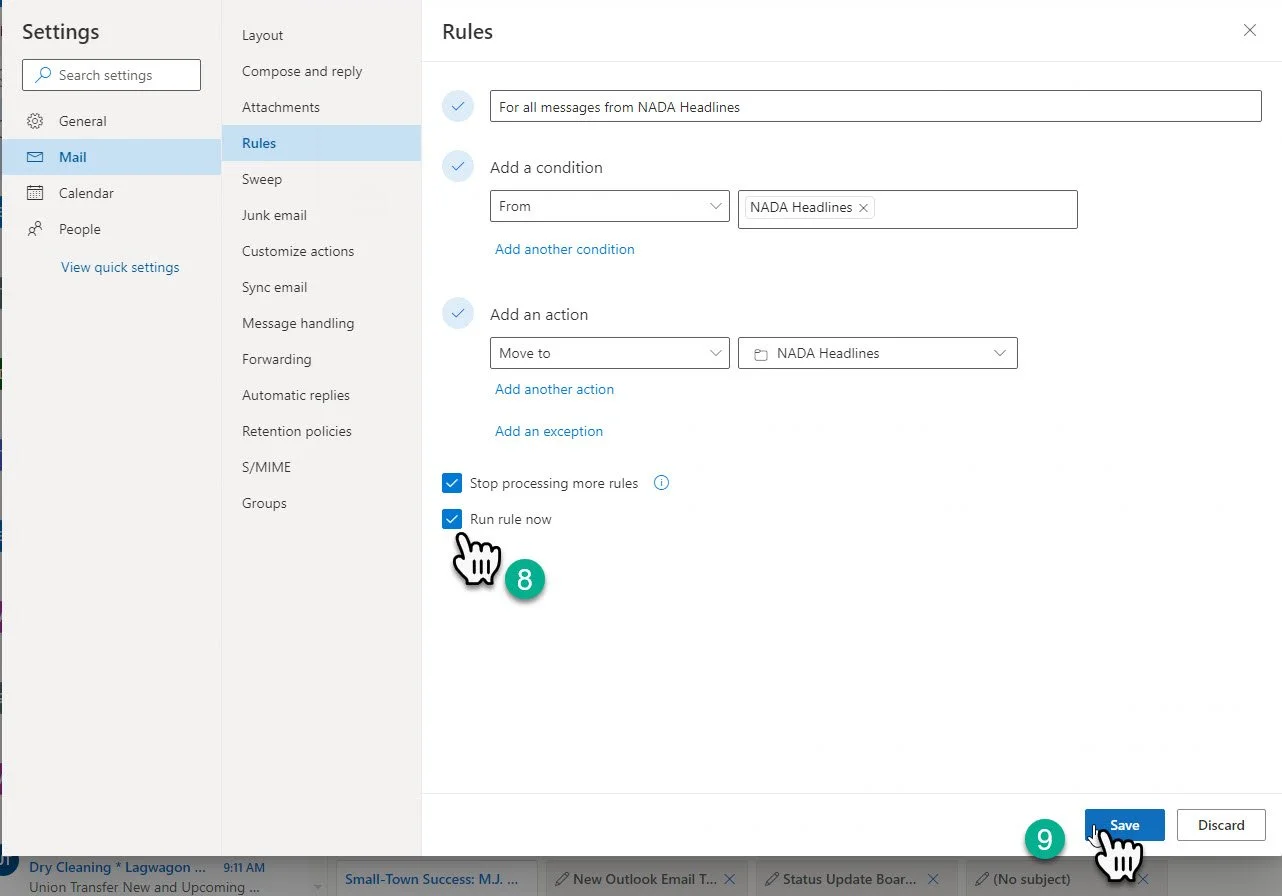
8- Choose Run Rule Now, if you would like this to take an immediate effect.
9- Click “Save”
You have completed the Outlook Tutorial.